The short answer
Offline (installed) billing software runs on a computer in your shop and keeps your records there, so it usually keeps billing when the internet drops. Cloud billing software runs on the provider’s servers and is used through a browser or app, so you can see the business from anywhere but depend on a connection and on the provider. Neither is better for every business. A single shop on patchy internet and a chain of five branches will reasonably choose differently, and many products now sit somewhere in between.
What “offline” and “cloud” actually mean
The labels are used loosely, so start by pinning them down.
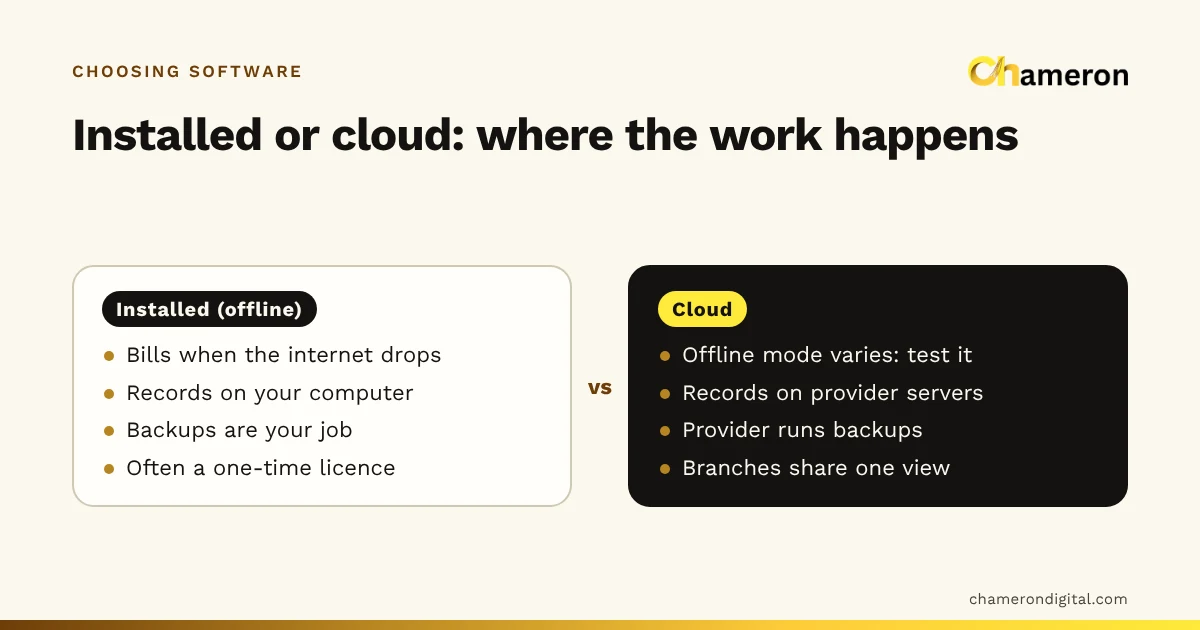
- Installed (often called offline). The program and the database live on a computer at your business. Other counters, phones or tablets may connect to that computer over the shop’s local network (Wi-Fi or cable), without going through the internet. See offline billing in our glossary.
- Cloud. The program and the records live on the provider’s servers. Your computer or phone is a window onto them, through a browser or an app.
- Hybrid. A cloud system that keeps a local copy and lets you bill during an outage, then syncs later; or an installed system that sends a copy of data elsewhere. Most of the real differences hide in how this part works.
So the useful question is not “offline or cloud?” but “what exactly works with no internet, where is the master copy of my records, and who looks after it?”
Side-by-side comparison
| Question | Installed software | Cloud software |
|---|---|---|
| Internet drops at 7 p.m. | Billing usually carries on | Depends on the offline mode; some keep billing, some stop |
| Where records live | On your computer | On the provider’s servers |
| Backups | Your responsibility, ideally automated and copied off the computer | The provider’s; you should still be able to export |
| Owner checking sales from home | Only if the product offers remote access or sync | Usually built in |
| Several branches | Each branch has its own system unless the product connects them | One live view across branches is common |
| Updates | Installed on your computer, often with a click | Applied by the provider, sometimes without notice |
| Billing computer dies | Restore a backup onto another computer | Sign in from another device |
| Typical pricing | Often a one-time licence, sometimes with yearly support | Usually a monthly or yearly subscription |
| Security of the computer | Yours: logins, disk encryption, antivirus | Mostly the provider’s for the servers; your devices and passwords are still yours |
Read the table as tendencies, not rules. A well-built cloud product with a strong offline mode can bill through an outage, and an installed product with a sync feature can give an owner a view from home.
What happens on a bad day
Software is easy to like on a good day. Choose it by imagining the bad ones, because that is when the difference shows.
| Situation | Installed | Cloud |
|---|---|---|
| Internet down for three hours on a Saturday evening | Counter keeps billing; anything that needs the internet, such as sending messages or updates, waits | Bills continue only if the offline mode covers your workflow; check whether new customers, returns and stock lookups work too |
| Power cut | Needs a UPS on the billing computer and router to finish the sale and shut down cleanly | Same UPS need, plus the router and a mobile hotspot to reconnect |
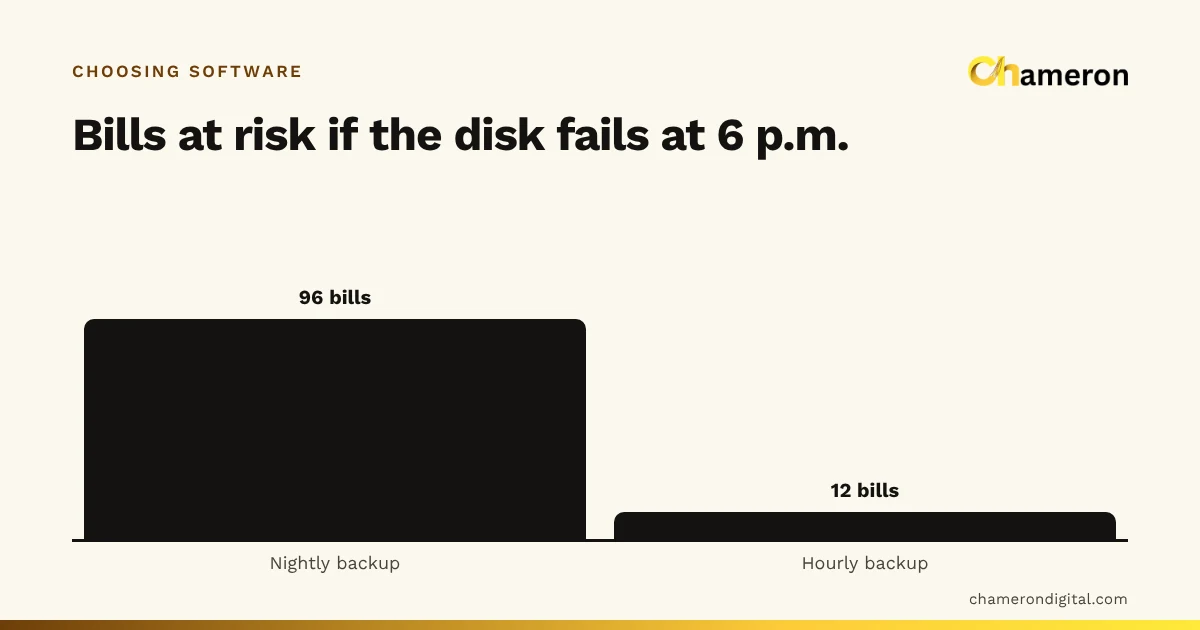
| Billing computer’s disk fails | Lost unless a recent backup exists off that disk; restore onto a replacement | Little data lost; any device that can sign in can bill |
| Provider has an outage, or the account lapses | Not affected | Billing may stop until it is resolved |
| Laptop stolen from the counter | Records go with it unless the disk is encrypted and a backup exists elsewhere | Records stay on the servers; change passwords and sign the device out |
Notice that each type fails in a different place. Installed software puts the risk on your computer, so backups matter most. Cloud software puts the risk on the connection and the provider, so offline behaviour and exports matter most. Our backup checklist for shops covers the installed side in detail.
Comparing the cost over three years
Headline prices compare badly because one is paid once and the other monthly. Put both on the same three-year footing.
Here is an example with invented figures for a single shop. Your quotes will differ; the method is what matters.
| Cost item | Installed (example) | Cloud (example) |
|---|---|---|
| Licence or subscription | ₹24,000 one-time | ₹850 × 36 = ₹30,600 |
| Yearly support for years 2 and 3 | ₹3,000 × 2 = ₹6,000 | Included |
| External drive for backups | ₹4,000 | Not needed |
| Backup mobile data for outages | Not needed | ₹200 × 36 = ₹7,200 |
| Three-year total | ₹34,000 | ₹37,800 |
The gap here is ₹3,800 over three years, about ₹106 a month. That is small next to the cost of one evening without billing. So settle the behaviour first (internet, branches, who looks after the computer), then use cost to choose between products that pass. Setup, data import and staff training cost about the same either way; our guide to choosing business software shows how to include them.
When each approach fits
Installed software tends to fit when
- Your internet is unreliable, shared or expensive, and the counter cannot wait for it.
- You run one shop, or several counters in one building on the same network.
- You want the master copy of your records on your own premises.
- Someone can keep an eye on backups, or the software makes and checks them itself.
Cloud software tends to fit when
- Your internet is reliable and you have a backup connection.
- You run several locations and want one live view of sales and stock. See multi-store retail.
- You would rather not look after a computer’s backups and updates yourself.
- The owner often checks the business from somewhere else.
A hybrid may fit when
You need both: billing that survives an outage and a remote view. Then the details of syncing matter most. Ask what happens if two counters sell the last unit of the same item while offline, and how conflicts are shown to you.
Questions to ask any vendor
Ask these whichever type you are considering, and ask to see the answer, not just hear it.
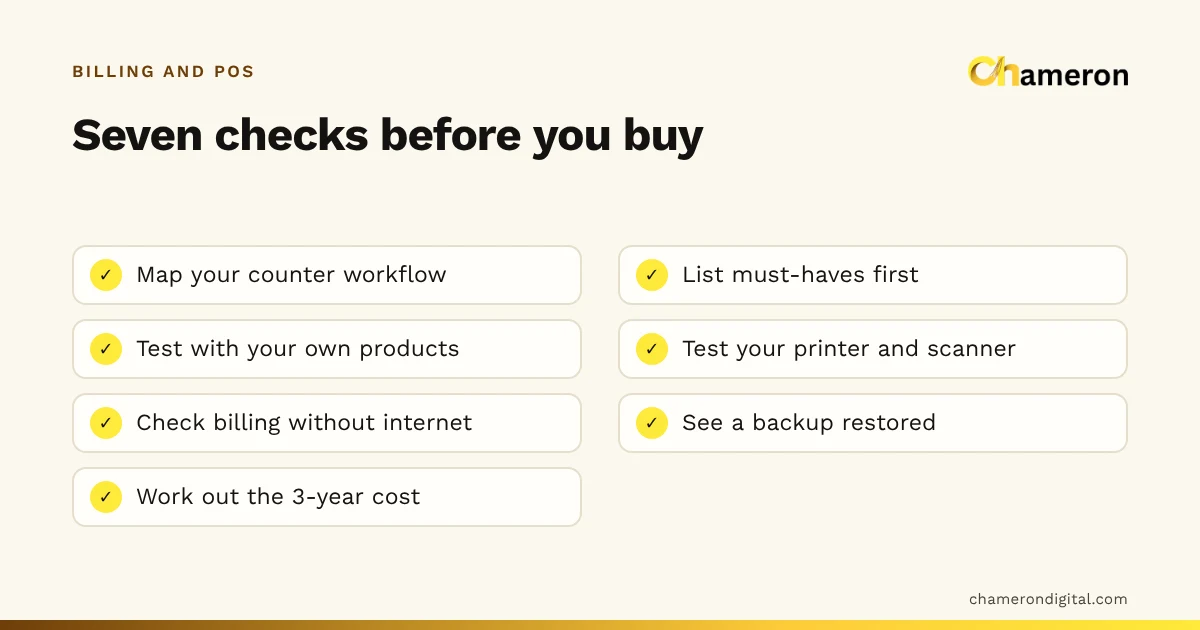
- Pull the cable. During the demo, disconnect the internet and make a sale, a return and a new-customer bill. What works, and what happens when the connection returns?
- Where is the master copy? On my computer, your servers, or both? If both, which one wins when they disagree?
- Backups. How often are they made, are they checked, where is the second copy kept, and how long does a restore take?
- Exports. Can I download all products, customers and bills as Excel or CSV, at any time, without asking?
- Access. Who can see my data, including your staff? Can I give each employee their own login and role?
- Updates. How are they installed, can an update be rolled back, and will I be told before something changes?
- Leaving. If I stop using the product, what happens to my records, and for how long can I still read them?
A free software selection checklist collects these and other questions in one place, and the short answer to whether billing software works without internet is worth reading before a demo.
Common mistakes
- Trusting “works offline” without testing it. Some offline modes only allow simple sales; returns, credit and stock checks may still need the connection.
- Assuming installed means backed up. Records on one disk are one failure away from gone. Backups need to leave the computer.
- Assuming cloud means you never need an export. Keep your own periodic export for tax and accounting records, and in case you change provider.
- Forgetting the router and the UPS. Both types stop if the counter computer or the network loses power mid-sale.
- Choosing for a future you have not planned. Buying for five branches when you have one, or ignoring a second branch you are opening next year, both cost money.
- Comparing month one instead of year three. Use the three-year method above.
How BILL OS approaches it
BILL OS is installed software: it runs on a Windows computer in the shop, and the internet is not needed for billing. Phones, tablets and other computers on the same network can open it in a browser while it runs on the main computer; the internet is needed for WhatsApp messages and for updates. Because the records live with you, its backups and recovery feature makes automatic, checksum-verified backups and can copy each one to a second drive or synced folder. BILL OS does not encrypt its database or backups, so turn on disk encryption on the computer and protect the backup folder.
The bottom line
Offline and cloud billing software fail in different places. Installed software depends on your computer and your backups; cloud software depends on your connection and your provider. Decide which risk you can manage better, test the bad-day scenarios in a demo, compare three-year costs, and make sure you can export your records either way. When you are ready to compare features, our guide to choosing billing software takes it from there.
Questions people ask
Can offline billing software take UPI payments?
Yes. The customer pays from their own phone to your QR code or UPI ID, which uses their mobile data, not your billing computer’s. The billing software records that the bill was paid by UPI; you confirm the money arrived in your bank or payment app as usual.
Is my data safer on my own computer or in the cloud?
Neither is automatically safer. Your own computer can be stolen, fail or catch a virus, so it needs backups, disk encryption and separate logins. A cloud provider handles the servers, but you depend on its security and account controls. Ask specific questions either way, and see our backup checklist.
Can I see my sales from home with installed software?
It depends on the product. Some installed systems only work on the shop’s own network; others offer remote access or sync. Ask the vendor exactly what is possible away from the shop and what it needs to be set up.
What happens to my records if I stop paying for a cloud subscription?
Policies differ between providers. Before you sign up, ask how long records are kept after an account lapses, and how to export all bills, products and customers in a usable format such as Excel or CSV.
Can I switch from one type to the other later?
Usually, if you can export your products, customers and past bills in a standard format. Ask both the old and the new vendor how an import works, and keep the old system’s records readable for your tax and accounting needs.