The short answer
To protect a shop’s billing records, make backups automatically at least once a day, keep a second copy off the billing computer and a third away from the shop, check that the backups can be restored, and protect both the computer and the copies. Most shops have the first step and skip the rest. The checklist below closes the gaps, and the worked example shows how much a gap can cost.
What is at stake on the billing computer
The billing computer holds more than bills. In a typical shop it is the only complete record of:
- Sales and GST: every bill, return and credit note, needed for your returns and your accountant.
- Stock: the stock ledger that says what should be on the shelf.
- Money owed to you: customer credit (udhaar) and part-payments.
- Money you owe: supplier balances and purchase bills.
- Products and prices: item names, barcodes, SKUs and cost prices built up over years.
The threats are ordinary: a hard disk that dies, a power cut in the middle of writing a file, a virus, a stolen laptop, water from a leaking roof in the monsoon, or someone deleting the wrong folder. None of them is rare over a few years of trading.
The checklist
| What | How often | Who |
|---|---|---|
| Automatic backup made by the software | Daily at least; hourly in trading hours if possible | The software |
| Backup taken before every software or Windows update | Every update | The software, or the person updating |
| Second copy on another device (USB drive, network drive) | Every backup | The software, if it supports a second location |
| Third copy away from the shop (drive taken home, synced folder) | Weekly at least | Owner |
| Backups checked (verify option, or a test restore) | Weekly check; full restore quarterly | Owner or manager |
| Restore steps written down, with where the copies are | Review every quarter | Owner |
| Disk encryption on the billing computer and backup drives | Once, then keep on | Owner or technician |
| UPS on the billing computer and router | Battery checked every few months | Owner |
| Separate logins for each staff member; strong owner password | When staff join or leave | Owner |
| Windows and software updates installed | Monthly, after a backup | Owner or technician |
Print the table and put dates against each row. The rows without a date are your risks.
The 3-2-1 rule, shop-sized
A widely used rule of thumb for backups is 3-2-1:
In a shop this can be simple:
- Copy one: the live records on the billing computer.
- Copy two: backups copied automatically to a USB drive or a network drive in the back office.
- Copy three: a weekly copy taken home on a second drive, or a synced folder that keeps earlier versions.
Two drives that you swap each week work well: one stays in the shop, the other at home, and you exchange them every Monday. If a virus encrypts everything connected to the billing computer, the drive at home is untouched.
How much could you lose?
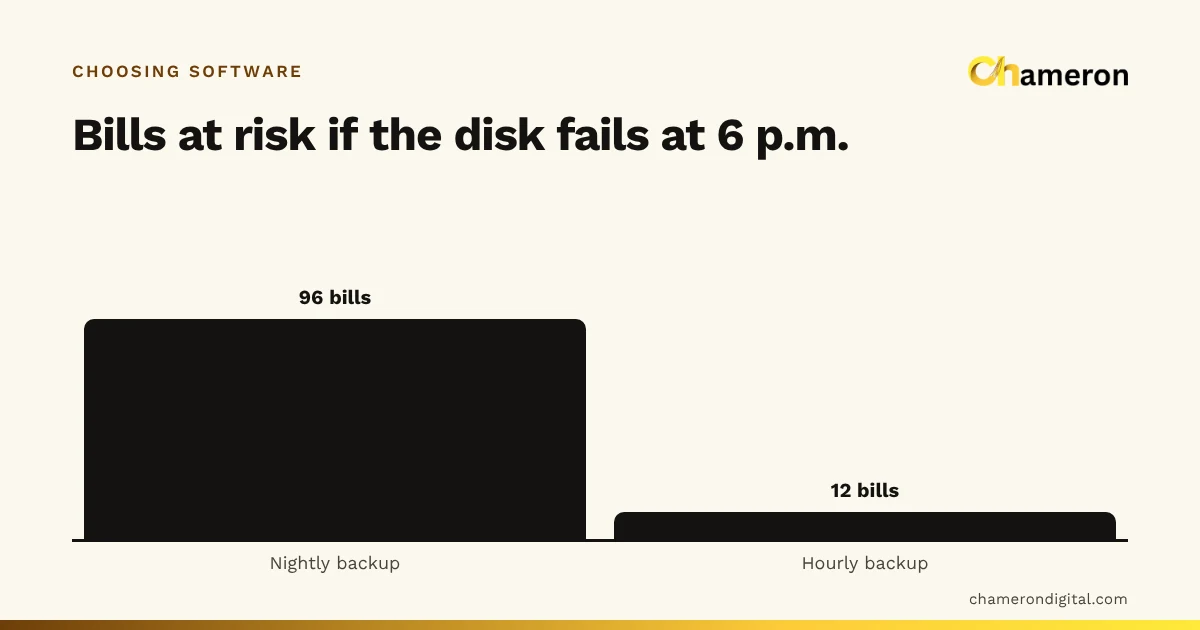
The worst case is everything recorded since your last good copy. Work it out before it happens.
Ninety-six bills are not just typing. Customer credit taken that afternoon may never be recovered if nobody wrote it down. That is why the backup frequency should follow how busy you are, not a default someone set years ago.
The second number to know is how long it takes to bill again. Time a practice run: find a spare computer, install the software, restore the backup, connect the printer and scanner, and make a test bill. If it takes three hours with nobody watching, plan what the counter does during those three hours, such as a carbon-copy bill book kept for exactly this day.
Practise the restore
A backup file that exists is not the same as one that works. Once a quarter, run this drill on a spare computer or a test folder, never over your live records:
- Pick the latest backup from the second or third copy, not the one on the billing computer. That is the copy you would actually be using.
- Restore it, following your written steps. Note anything that was missing from the steps.
- Check three things against the live system: the last bill number of the backup date, the stock of three items you know well, and one customer’s credit balance.
- Note how long it took, and whether the printer and scanner worked afterwards.
- Write the date and the result in a simple log. If anything failed, fix it this week.
The check in step 3 matters. A backup can “restore” successfully and still be weeks old because the automatic job quietly stopped. A known bill number catches that.
Protecting backups from theft and viruses
A backup is a full copy of your business: customers’ phone numbers, what you paid suppliers, what you earn. Treat it like cash.
- Encrypt the disks. Turn on the disk encryption built into your version of Windows (or use an encrypted drive) for the billing computer and every backup drive, so a stolen laptop or a lost pen drive is not a stolen database.
- Do not leave the second drive plugged in forever if your software can copy to it on a schedule. A drive that is always connected can be hit by the same virus.
- Lock the backup folder down. Only the owner’s Windows login should be able to open or delete backups.
- Separate logins. Each staff member gets their own login with only the rights they need. See how roles and permissions work in practice.
- Install updates after a backup, not instead of one.
Power cuts and the UPS
A power cut while the software is writing to its database is one of the easiest ways to damage records. A UPS gives the counter time to finish the sale and shut down properly. Put the billing computer, the router (if other devices connect through it) and the receipt printer’s power on it, and check the battery every few months, because batteries fade quietly. Our hardware selection checklist includes the UPS alongside printers and scanners.
Common mistakes
- Backups on the same disk as the data. When the disk dies, both go together.
- One backup file overwritten every night. If yesterday’s file was already corrupt, you have nothing older to fall back on. Keep dated copies.
- Nobody checks the backup job. It stopped three months ago when someone changed a password, and nobody noticed.
- Restoring over live data to “test”. Always test on a spare computer or a separate folder.
- Leaving copies unprotected. An unencrypted pen drive in the cash drawer holds every customer’s number.
- Only the owner knows the steps. Write them down and keep a copy with the backup drive at home.
- Forgetting the paper. Keep the fallback bill book and the day’s UPI records until the next backup is confirmed, so the gap can be rebuilt.
How software can carry the routine
The best checklist is one the software follows for you. BILL OS makes automatic backups daily by default (hourly if you choose) and before every upgrade and restore, verifies each one with a checksum, copies it to a second folder such as a USB drive, network share or synced folder, and keeps a safety copy of the current records before any restore. It does not encrypt its database or backups, so disk encryption and a protected backup folder are still your job. The steps are in back up and restore BILL OS.
The bottom line
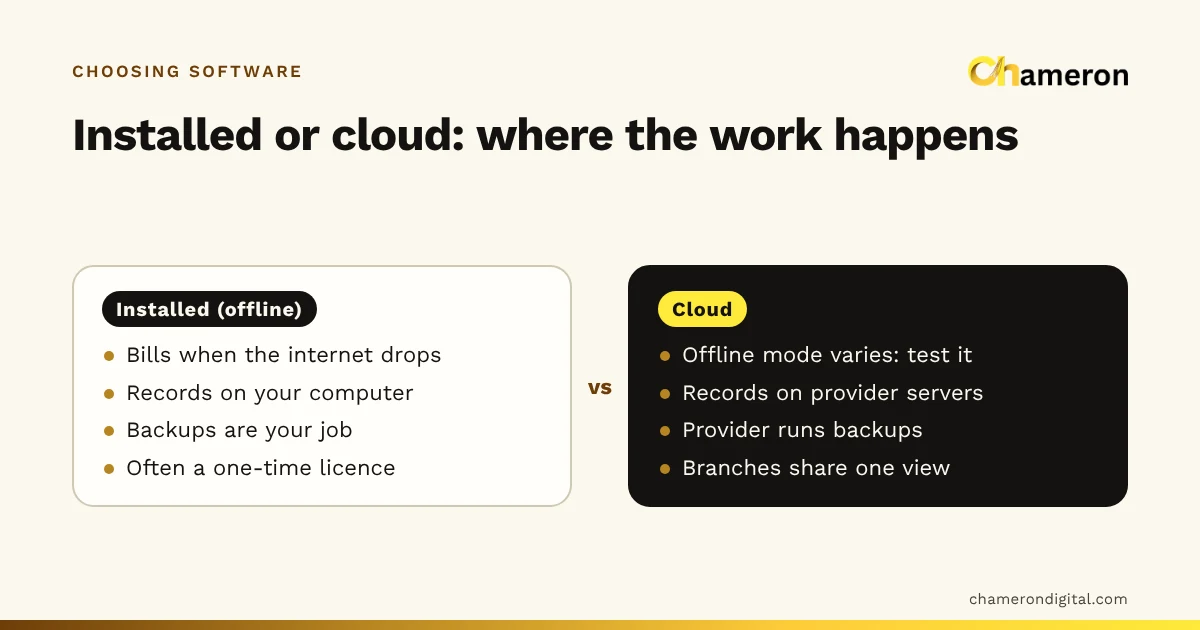
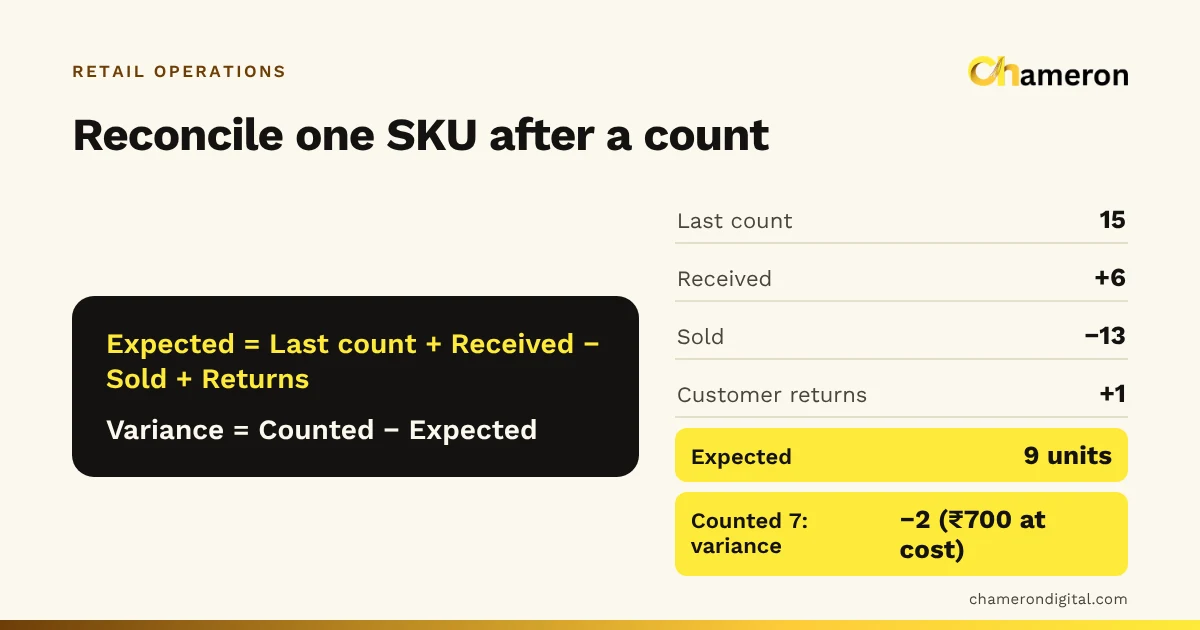
Ask yourself two questions: how many bills would I lose if the disk failed now? and how long until I could bill again? Automatic, checked backups, three copies on two devices with one away from the shop, a quarterly restore drill and encrypted disks make both answers small. If you are still deciding where your records should live, read our offline vs cloud comparison; and after any restore, a quick stock count and reconciliation confirms the shelves and the screen agree again.
Questions people ask
How often should a shop back up its billing data?
At least once a day, made automatically by the software, plus before every update. A busy shop that would struggle to re-enter several hours of bills should back up hourly during trading hours if its software allows it.
Is a pen drive enough as a backup?
A pen drive is a reasonable second copy if the backups are copied to it automatically and checked, and if it does not stay plugged into the billing computer all the time. Pen drives fail and get lost, so keep a third copy elsewhere as well, and protect the drive because it holds your records.
Is a synced cloud folder a backup?
It is a useful off-site copy, but a sync copies mistakes too: a deleted or corrupted file can be synced over the good one. Use a service that keeps earlier versions, and keep dated backup files rather than one file that is overwritten.
Do I need backups if my billing software is in the cloud?
The provider backs up its servers, but you should still download a regular export of bills, products and customers. It protects you if the account has a problem or you change provider. See our offline vs cloud comparison.
What should I do first when the billing computer fails?
Do not experiment on the failed disk or install anything on it. Switch to your fallback (paper bills or a second device), then restore the latest checked backup onto another computer, test one bill and the printer, and re-enter the paper bills from the gap.