The short answer
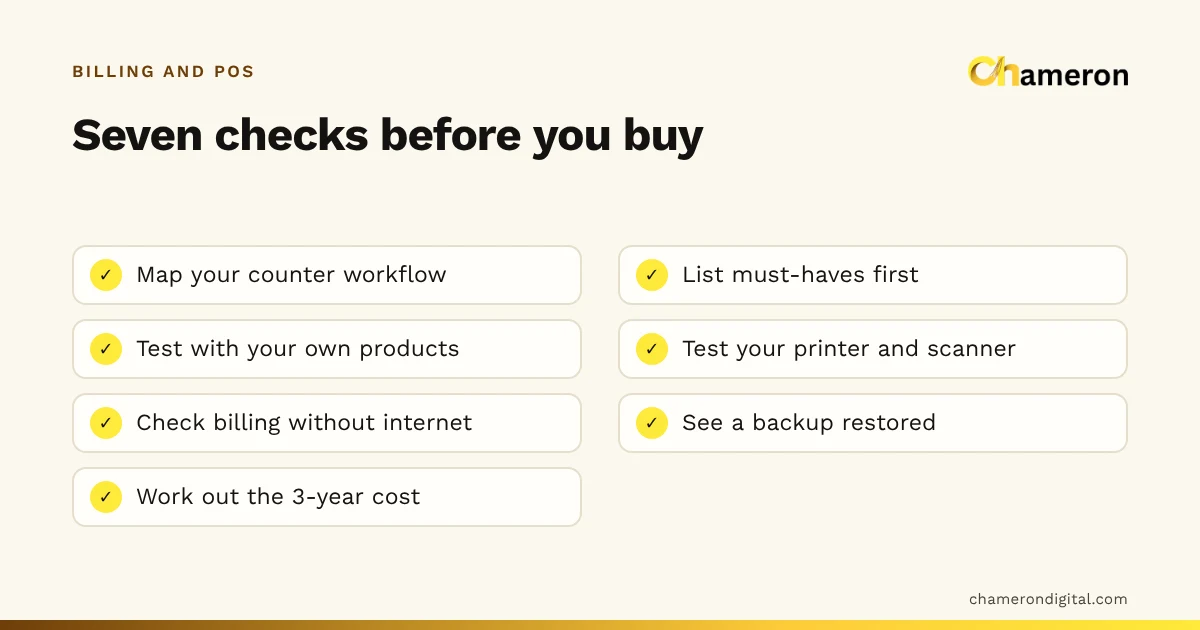
To choose billing software for a small shop, start from your own counter rather than a feature list. Write down how sales, returns, deliveries and the day close actually happen, decide which of those the software must handle, then test two or three products with your own items, printer and scanner before paying. Choose the one that handles your must-haves reliably at a total cost you can sustain for several years.
Step 1: Map how your shop actually works
Most bad software choices come from a good demo of the wrong workflow. Before you speak to any vendor, spend half an hour writing down what happens in your shop, in your own words.
Take an invented footwear shop with two counters. Its list might look like this:
- Customer picks a pair; cashier needs the exact size and colour.
- Regular customers are looked up by mobile number; some buy on credit.
- Payment is mostly UPI and cash, sometimes split.
- Exchanges for a different size happen several times a day.
- Two deliveries a week, each with a supplier bill and the occasional damaged pair.
- The owner wants a daily figure for sales by payment method and a weekly list of what to reorder.
- The accountant wants GST figures every month.
That list is now your test. A product that cannot handle point 4 cleanly is a poor fit for this shop, whatever else it does. If you are unsure what billing software covers in the first place, read what billing software is first.
Step 2: Separate must-haves from nice-to-haves
Turn your workflow into two lists. A must-have is something the shop cannot run without; a nice-to-have would make life easier but is not a reason to choose.
| Must-have (for the footwear shop) | Nice-to-have |
|---|---|
| Sizes and colours as separate items with their own stock | Voice search |
| Exchange against the original bill | Customer-facing second screen |
| Cash, UPI and split payments | Loyalty points |
| Credit on the customer's record | Salesperson commission |
| Barcode scanning and label printing | Phones billing at busy times |
| Billing that continues without internet | Automatic credit reminders |
Any product that fails a must-have is out. Among those that pass, nice-to-haves can break a tie. This stops a long feature list from distracting you from the one thing your counter needs every hour.
Step 3: The billing software checklist
Use these 25 checks with each shortlisted product. Ask the vendor to show each one working, not just say yes. You can also download our software selection checklist to fill in during demos.
At the counter
- Items can be found by barcode scan, name and code, quickly, with a queue waiting.
- A bill can be put on hold while the next customer is served.
- Cash, UPI, card and split payments are recorded separately, with change worked out.
- Discounts can be given per item or per bill, with limits by role.
- Receipts print correctly on your paper width, and A4 bills if you need them.
Products and stock
- Sizes and colours (if you sell them) are separate variants, each with its own SKU and stock.
- Stock reduces with each sale and increases when a delivery is received. Our guide to how billing and inventory work together explains why this matters.
- Damaged stock and supplier returns can be recorded.
- Stock counts can be entered and differences approved with a reason.
- Products can be imported from a spreadsheet, with errors shown before anything is saved.
GST and records
- GST can be turned on or off to match your registration, with tax per item.
- Returns and exchanges are recorded against the original bill, with a credit note where needed.
- Reports export in formats your accountant can use, such as Excel or CSV.
- If you need e-invoicing or e-way bills, they are live for production use, not only shown in a demo mode. (BILL OS, for example, does not offer them for production use.)
Control and staff
- Each person has their own login.
- Roles limit who can change prices, give large discounts, cancel bills or edit stock.
- Cancelled bills need a reason and stay visible in reports.
- The cash drawer can be opened with a float and closed with a count.
Data safety
- Backups happen automatically, without anyone remembering.
- A backup can be copied to a second place, such as a USB drive.
- You have seen a restore work, not just been told it does.
- You can export your data if you ever stop using the software.
Cost and support
- The price is clear: per device, per store or per user, and what each plan includes.
- Updates and support are explained, including how you reach someone when the counter is stuck.
- The vendor gives you a written list of supported computers, printers and scanners.
Step 4: Run a pilot with a test script
A demo shows the software at its best. A pilot shows it in your shop. Pick 20 to 30 of your own products, including awkward ones (a loose item, an item with variants, an item without a barcode), and work through a written script.
| Test | Pass if |
|---|---|
| Ring up a 12-item bill by scanning | Under a couple of minutes, no wrong items |
| Hold a bill, serve someone else, resume it | Nothing lost or duplicated |
| Take ₹500 cash and ₹740 UPI on a ₹1,240 bill | Both methods recorded correctly |
| Exchange one item for another size | Stock and totals correct for both items |
| Receive a delivery with one damaged unit | Only good units added to stock |
| Unplug the internet and bill | Billing continues, or you know exactly what stops |
| Print receipts and barcode labels on your own printers | Readable, correct width, labels scan |
| Close the day | Expected cash matches what you counted |
| Export the day's sales | Your accountant can open and use the file |
| Take a backup and restore it on a test machine | Records come back complete |
Keep a written list of anything that fails or confuses staff. Repeat the script on each shortlisted product so the comparison is fair. Our hardware selection checklist helps you test the devices at the same time, and the hardware guide explains what each one does.
Step 5: Work out the total cost over three years
Monthly prices are easy to compare and easy to mislead you. Add up everything you will pay over the period you expect to use the system. The figures below are invented for illustration; use your own quotes.
| Item | Cost over three years |
|---|---|
| Software charge (₹6,000 a year × 3) | ₹18,000 |
| Receipt printer | ₹6,500 |
| Barcode scanner | ₹2,500 |
| Label printer | ₹8,000 |
| UPS for the billing computer | ₹4,000 |
| Setup and product entry (12 hours × ₹150) | ₹1,800 |
| Staff training (6 hours × ₹150) | ₹900 |
| Total | ₹41,700 |
Compare that monthly figure with the hours the software will save and the errors it will prevent; our comparison of billing software and manual billing shows how to estimate both. The ROI calculator does the arithmetic for you.
Questions to ask before you pay
- What exactly happens at the counter when the internet goes down? And when the main computer is switched off?
- Where is my data stored, and how do I get a full copy of it?
- What does an update involve, and can it be rolled back if something goes wrong?
- Which features are in my plan, and which cost extra?
- How are prices charged as I add a counter, a store or a staff member?
- What do I do on a Saturday evening if billing stops?
Vendors that publish clear answers make this easier. BILL OS, for example, lists its computer, printer and scanner requirements and what needs the internet on its product page, so you can check fit before a demo.
Red flags and common mistakes
- Choosing from a demo alone. Demos use tidy sample data. Insist on testing with your own products.
- Buying hardware first. Choose the software, then buy the printer and scanner it supports, and test them together.
- Assuming "offline" means the same thing everywhere. Ask which tasks continue without the internet: billing, printing, stock updates, reports. See does billing software work without internet.
- Ignoring backups until something fails. A product that cannot show you a restore is a risk to your records.
- Paying for modules you will not use for years. Buy for today's workflow, with a clear upgrade path.
- Vague answers about tax features. If a feature such as e-invoicing is shown only in a demo, treat it as not available until it works for real bills.
- Leaving staff out. The cashier uses the software every day. Let them try the pilot and listen to what slows them down.
The bottom line
Choosing billing software is less about finding the product with the most features and more about finding the one that fits your counter. Map your workflow, set firm must-haves, check each product against the 25 points above, run a pilot with your own products and hardware, and compare the full three-year cost. The software that passes those tests is the right one for your shop, even if its feature list is shorter.
Questions people ask
Should a small shop choose installed or cloud billing software?
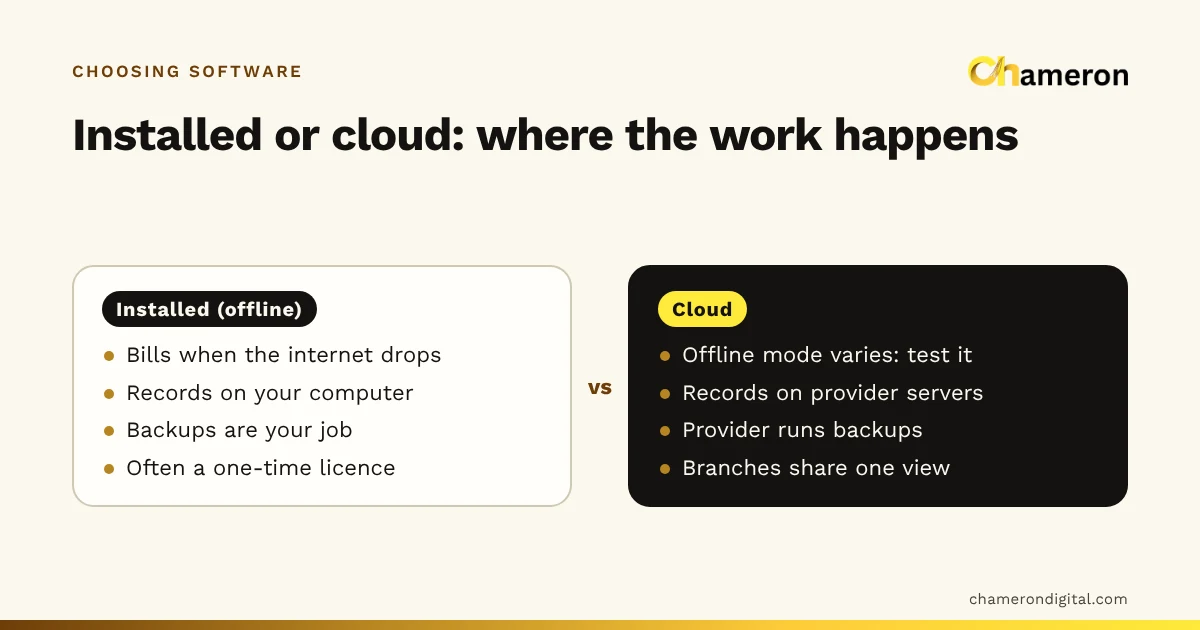
It depends on your internet, how many locations you have and who looks after the computer. Installed software can keep billing when the internet is down; cloud software is easier to reach from anywhere. Our guide to offline and cloud billing software compares them.
How long should a pilot last?
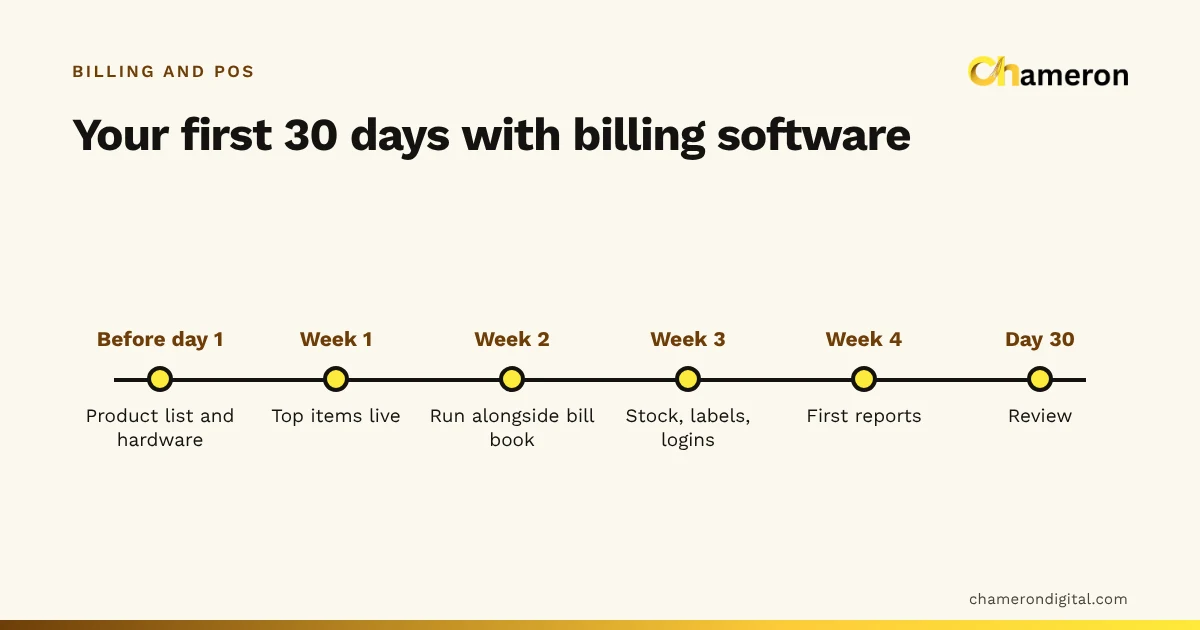
Long enough to cover a normal week: a busy day, a quiet day, a delivery, a few returns and at least three day closes. For most small shops that is one to two weeks, run alongside your current method.
What is the difference between billing software and POS software?
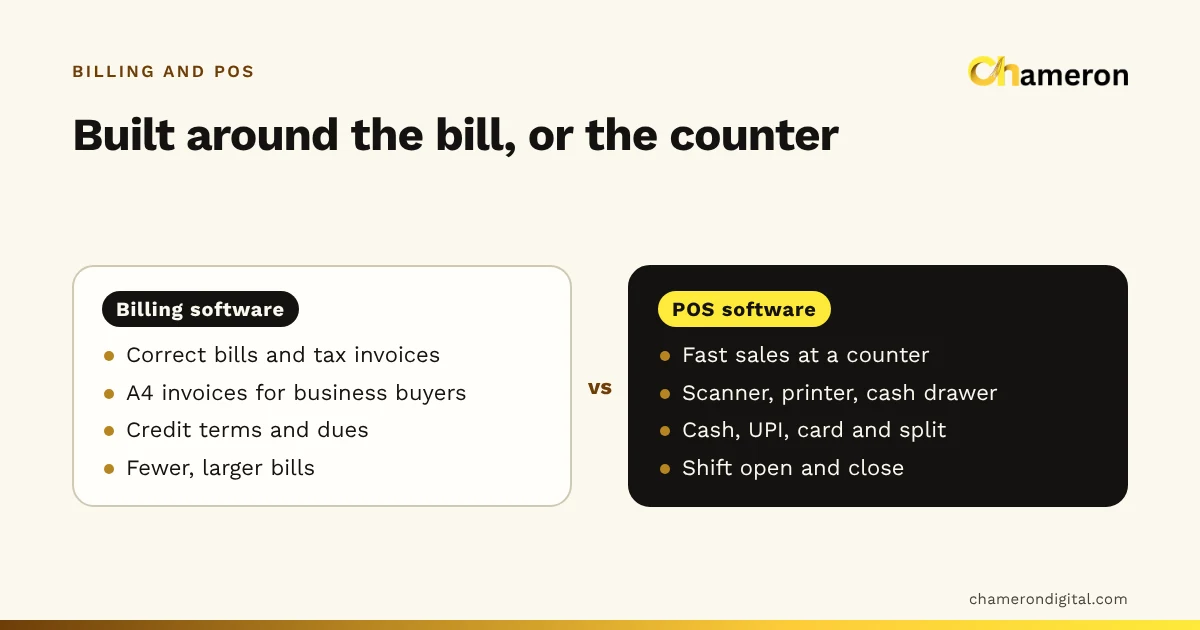
The terms overlap. Billing software focuses on creating bills; POS software usually adds counter hardware, stock and payments. Our billing software vs POS software guide explains where the line falls.
What should I check about GST?
Check that the software can carry your GSTIN, apply tax per item, issue credit notes for returns and export what your accountant needs. Ask your accountant to look at a sample bill and export before you commit. Tax rules change, so rely on the official GST portal or your accountant for current requirements.