
DINE OS · Restaurant operations
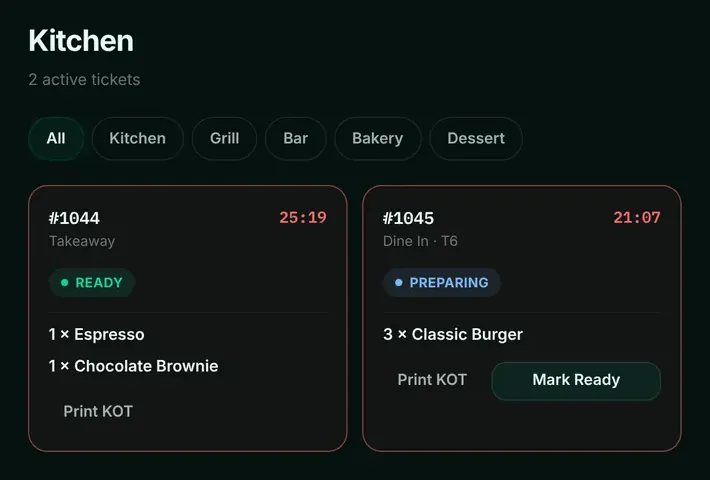
Tickets on a kitchen screen, by station
Orders appear on the kitchen screen the moment they are placed, filtered by station, with a timer that makes late tickets obvious.
How it works
Step by step, and why each step matters.
Each step says what the software does, then what it means for your business.
- 01
Tickets by station
Filter the kitchen board by station: kitchen, grill, bar, bakery or dessert. Each menu item has its station.
Each cook sees only their own work.
- 02
A timer on every ticket
Each ticket shows how long it has been waiting, and the home screen flags orders stuck in the kitchen.
Late orders are caught before the customer asks.
- 03
Mark ready
The kitchen marks an order ready, and the counter sees it in the order hub.
No shouting across the pass.
- 04
Print a KOT
Print a kitchen order ticket through the computer’s printing, to the printer you choose.
Kitchens that prefer paper can keep it.
In the software
What it looks like.
Screens from DINE OS, running with demo data.
Questions
About kitchen display and kots.
Do I need special hardware for the kitchen screen?
Ask us about the screens and printers you plan to use; see the hardware guide.
Related
More from DINE OS.
- DINE OSRestaurant till and order hubThe till sends items and quantities, and the price always comes from the menu. Every order, whatever the channel, lands in one list.
- DINE OSMenu and recipesThe menu is the source of truth for prices, tax, kitchen stations and ingredients. Change it once and the till, kitchen and stock follow.
Guides on this topic
- Guide · 9 min readRestaurant Printers: How to Choose Receipt and KOT PrintersA printer that jams at 8 pm costs more than a good one costs to buy. Start with a map of where you print, then choose the type, width and connection for each spot, and test it with your own software before service.
- Guide · 9 min readThe Restaurant Order Workflow: From Order to Paid Without GapsMost restaurant problems happen in the gaps: between the counter and the kitchen, the kitchen and the table, the table and the till. A clear order workflow, with one owner for every step, closes those gaps.
- Guide · 9 min readHow Restaurant Billing Software Works: Orders, KOTs and BillsA restaurant bill is the last step of a chain that starts with the menu. This guide follows one table's order through every step the software takes, with the actual tickets and numbers.
See kitchen display and kots in DINE OS.
Ask for a demo on your own products and workflow. From ₹999 a month.