The short answer
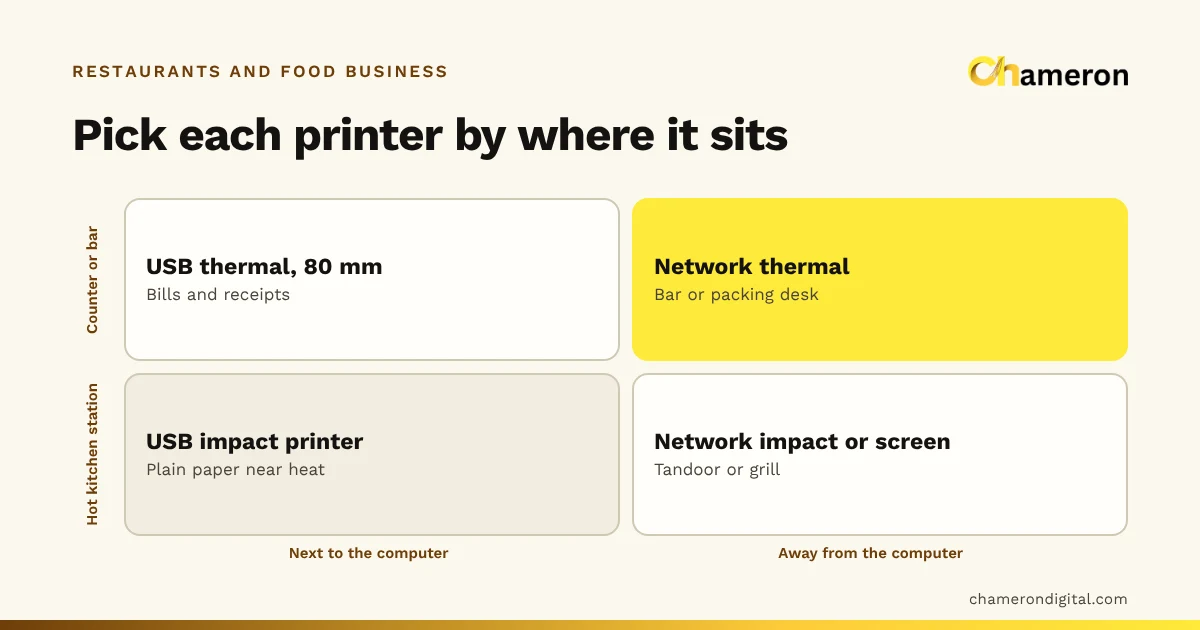
Most restaurants need one receipt printer at the counter and one kitchen order ticket (KOT) printer for each station that works from paper. Choose each one by where it will sit: a thermal printer on 80 mm paper for the counter and bar, and an impact printer or a kitchen screen for hot, greasy stations. Connect by USB when the printer is next to the computer and by a wired network when it is not. Above all, check that the printer has a working driver for your computer and test it with your own software before you buy more than one.
Start with a printer map
Before comparing models, walk through a service and list every place where something needs to be printed. A typical mid-sized restaurant looks something like this:
| Spot | What it prints | Conditions | Usual choice |
|---|---|---|---|
| Counter or cash desk | Bills and receipts | Clean, beside the computer | Thermal, 80 mm, USB |
| Main kitchen line | KOTs for curries and mains | Warm, steamy | Thermal away from the stove, or impact |
| Tandoor or grill | KOTs for tandoor items | Hot, smoky, greasy | Impact, or a kitchen screen |
| Bar | Drink tickets | Wet, but not hot | Thermal, network |
| Packing desk | Parcel slips for takeaway | Clean, often far from the counter | Thermal, network |
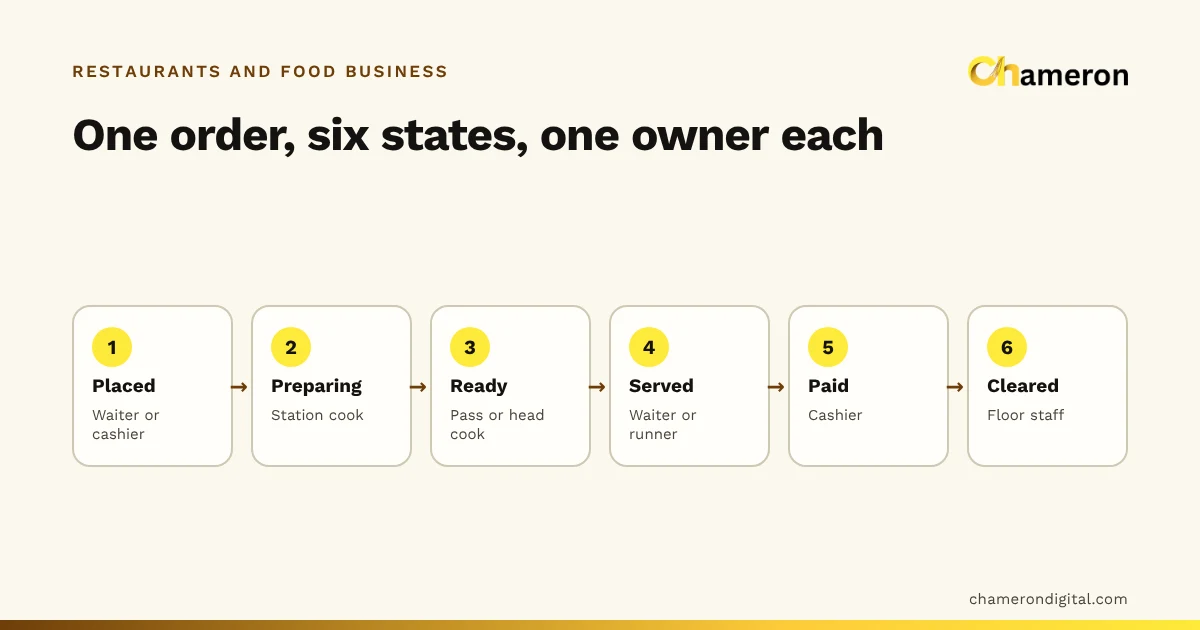
Not every spot needs its own printer. A small café might print everything at the counter and call orders out; a restaurant with a tandoor and a main line next to each other might share one kitchen printer. The map shows you the minimum number of printers and where cables or network points are needed. If you are still deciding how orders should move between these spots, start with the restaurant order workflow and come back.
Thermal or impact
The two kinds of printers used in restaurants work very differently.
| Thermal | Impact (dot matrix) | |
|---|---|---|
| How it prints | Heats special paper | Pins strike an ink ribbon onto plain paper |
| Noise | Quiet | Loud: easy to hear a new ticket |
| Speed | Fast | Slower |
| Consumables | Thermal paper rolls only | Plain paper rolls and ribbons |
| Near heat | Paper can darken and become unreadable | Plain paper is not affected by heat |
| Copies | One copy per print | Can print on two-ply paper for a carbon copy |
| Long-term legibility | Prints can fade over time | Prints last longer |
Thermal is the usual choice for the counter. It is quick, quiet and has no ribbon to replace. In the kitchen, decide station by station. A thermal printer on a shelf at the cool end of the line is fine. Right beside a tandoor or a griddle, the heat can turn the whole roll grey, and an impact printer or a kitchen display is safer. The noise of an impact printer is sometimes a benefit in a loud kitchen: the cook hears that a ticket has arrived.
58 mm or 80 mm paper
Width decides how much fits on a line. At a typical font, an 80 mm printer fits roughly 42 to 48 characters per line and a 58 mm printer roughly 32, though this varies by printer and font.
That difference shows up quickly on a KOT. "Paneer Butter Masala (Half), less spicy, no cream" is 49 characters: it wraps onto two lines at 80 mm and two or three at 58 mm, where it is easier to misread at a glance. Kitchen staff read tickets from an arm's length away, in a hurry, so 80 mm is the safer choice for kitchens. A 58 mm printer can suit a small counter with short bills.
Whichever you choose, set the paper width in the printer's driver and in your software's receipt settings, and check that the layout uses the full width without cutting off prices or totals.
Connections: USB, network or Bluetooth
| Connection | Suits | Watch out for |
|---|---|---|
| USB | A printer beside the computer | Cable length; only that computer can print to it |
| Wired network (Ethernet) | Kitchen and bar printers away from the counter | Needs a network cable run and a fixed address on your router |
| Wi-Fi | Spots where a cable is impractical | Busy kitchens and metal surfaces can make it unreliable |
| Bluetooth | A tablet or a single nearby device | Short range; pairing can drop |
For kitchen printers, a wired network connection is usually the most dependable. Ask whoever sets up your network to give each printer a fixed address, so the computer can always find it after a power cut. If you use Wi-Fi, test it at the busiest hour, when phones and other devices are also on the network.
Drivers and how your software prints
Restaurant software prints in one of two ways, and it is worth asking which before you buy a printer.
- Through the operating system. The software sends the bill or ticket to the computer's own printing, like any document. The printer needs a working driver for that computer, and the driver controls paper width, cutting and which printer is the default.
- By sending printer commands directly. Some software sends commands in the printer's own language, often called ESC/POS, to control the cutter or open a cash drawer. That needs printers that understand those commands.
DINE OS works the first way: it prints receipts and KOTs through the computer's own printing, to the printer you choose. It does not send ESC/POS commands, so the driver decides whether the paper is cut, and a cash drawer will not be opened by the software. That makes the driver the first thing to check. We do not publish a list of tested printer models, so ask us about the printer you have in mind and see our hardware guide for what is documented.
For any software, the basic driver check is the same as in our receipt printer set-up steps: install the manufacturer's driver, print the operating system's test page, set the paper width, then print a real bill or ticket from the software.
Placement in the kitchen
A kitchen is hard on electronics. Where you put a printer matters as much as which one you buy.
- Away from direct heat and steam. Not above the tandoor, beside the fryer or next to the dishwasher's steam.
- At eye level, near the cook who uses it. A shelf or wall bracket by the station, so the cook can tear a ticket without walking.
- Out of the splash zone. Grease and water are the most common reasons a kitchen printer fails early.
- With protected cables. Run power and network cables along the wall, away from floors that are mopped.
- Next to a ticket rail. Tickets go on the rail in time order, so the oldest is always obvious.
- With paper stored dry and cool. Thermal rolls stored near heat can darken before they are used.
Paper and rolls: plan your usage
Running out of paper mid-service is avoidable with a little arithmetic. The roll length is printed on the box; use your own figure in place of the invented one below.
Keep at least a week's spare rolls at each station, and a spare ribbon for every impact printer. Buy the roll diameter your printer accepts; a roll that is too large will not close in the lid.
When a printer fails mid-service
Every printer jams or runs out at some point. Decide in advance what happens next, so the kitchen does not stop.
- Reroute. Know which other printer can take that station's tickets, and how to switch it in your software.
- Fall back to the screen or paper. A kitchen screen, if you have one, keeps working. If not, keep a numbered handwritten KOT pad at each station.
- Know what the software shows. Ask what happens to a ticket sent to a printer that is off or out of paper: does the software warn you, or does the ticket simply not appear?
- Keep a spare. A spare thermal printer costs far less than a lost Friday evening.
Test before you buy more than one
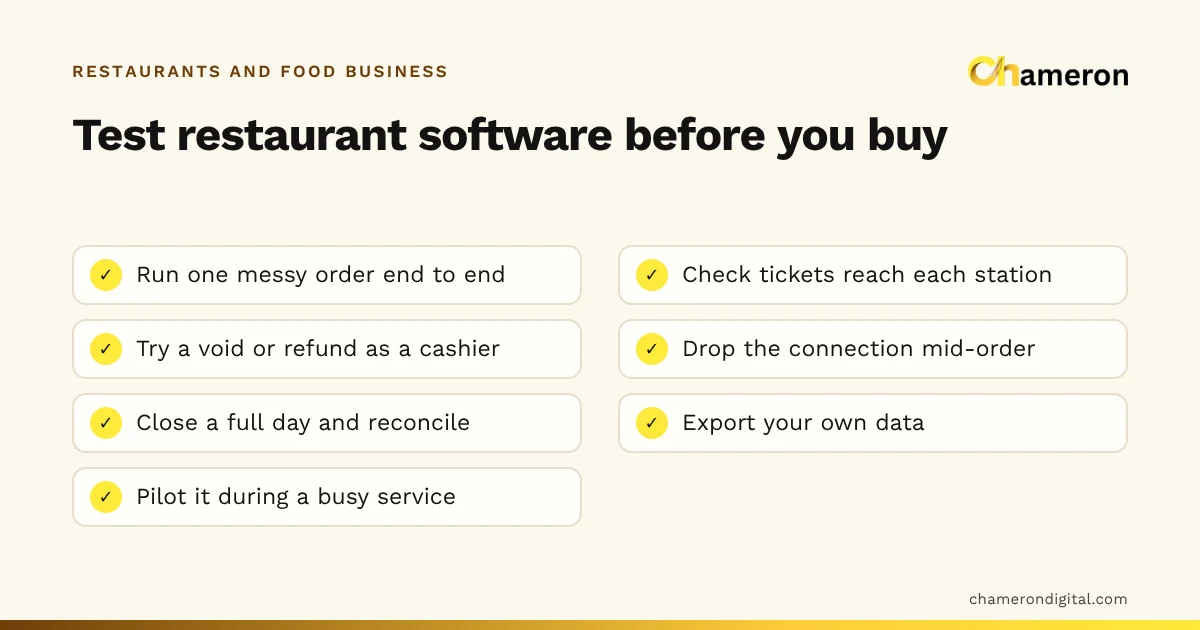
Buy one printer first, or borrow a demo unit, and run these tests with your own software:
- Print a long order with modifiers, notes and an addition.
- Send ten orders in two minutes, as during a rush, and check nothing is missed or out of order.
- Check the cut, and that no long blank strip feeds after each ticket.
- Read a ticket from where the cook stands, under kitchen light.
- Switch the printer off, send a ticket, and see what the software tells you.
- Unplug the network cable for a network printer and check how it recovers.
- Print a bill and check the business details, tax lines and totals are complete at your paper width.
The hardware selection checklist gives you a sheet to record the results.
Common mistakes
- Buying printers before mapping stations. You end up with a printer where nobody reads it and none where tickets are needed.
- Putting a thermal printer above the tandoor. The heat darkens the paper and the tickets become unreadable.
- Choosing 58 mm for the kitchen to save money. Long dish names wrap and get misread.
- Assuming a cash drawer will open automatically. That depends on how the software prints; check first.
- Relying on Wi-Fi for every kitchen printer. The busiest hour is when the network is most crowded.
- Treating thermal receipts as permanent records. Keep records in your software, not in a box of fading slips.
- No plan for a failed printer. Without a fallback, a jam stops the station.
The bottom line
Choose restaurant printers from the kitchen outwards: map where tickets and bills are needed, pick thermal or impact for each spot's conditions, prefer 80 mm paper and wired connections for the kitchen, and confirm the driver works with your software. Then test one printer through a simulated rush before buying the rest. For the wider hardware and software picture, see the restaurant POS software guide and the restaurant software checklist.
Questions people ask
How many printers does a restaurant need?
Usually one at the counter for bills and receipts, plus one for each kitchen station that works from paper. A small café can run on a single printer; a restaurant with a tandoor, a main line and a bar may need three or four. A kitchen screen can replace a station printer.
Is a thermal printer good for a kitchen?
It works in many kitchens, as long as it sits away from direct heat, steam and grease. Thermal paper darkens near heat, so for stations right beside a tandoor or grill many restaurants choose an impact printer on plain paper, or a kitchen screen.
Should I choose a 58 mm or 80 mm printer?
80 mm for most restaurants. Each line holds more characters, so long dish names and notes wrap less, and tickets are easier to read from a distance. 58 mm printers are smaller and cheaper and can suit a low-volume counter.
Can I keep thermal receipts as my sales records?
It is safer not to rely on them. Thermal prints can fade over time, especially in heat or sunlight. Keep your sales records in your billing software or another durable record, and ask your accountant what you need to retain.
Which printer models work with DINE OS?
DINE OS prints receipts and KOTs through the computer's own printing, to the printer you choose, so the printer needs a working driver for that computer. We do not publish a list of tested models; ask us about the printer you plan to use before you buy.