The short answer
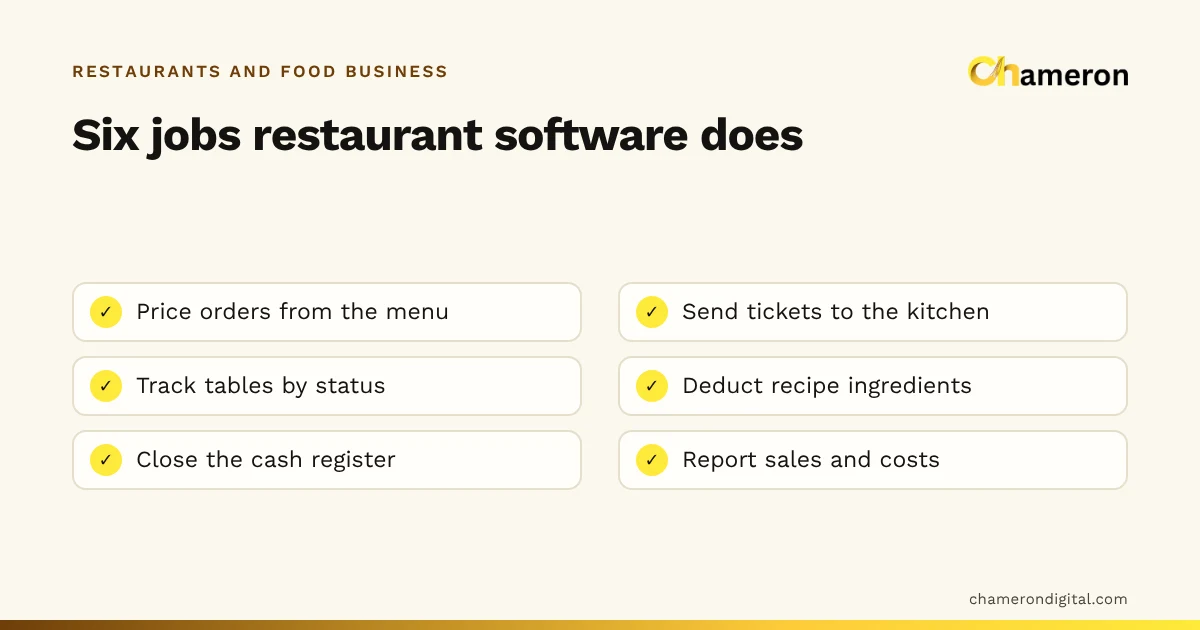
A restaurant POS is the till of a food business: it takes dine-in, takeaway and delivery orders, sends tickets to the kitchen, keeps table bills open and settles payments. Choosing one well means matching it to how you serve, planning the hardware station by station, asking for every cost up front and setting it up before the day you need it. This guide walks through each of those in order.
If you want the background first, what restaurant management software is explains how the POS fits with the kitchen, stock and reports, and how restaurant billing software works follows one order through the mechanics.
Start from how you serve
The same feature can be essential for one restaurant and clutter for another. Begin by writing down how orders reach you and how they leave the kitchen.
| Format | Must-haves | Nice to have |
|---|---|---|
| Takeaway counter or chai stall | Fast item buttons, cash and UPI, daily close | Simple stock of a few key items |
| Quick-service café | Modifiers (size, milk, extras), kitchen ticket or screen, loyalty | Recipe-linked stock |
| Full-service dine-in | Table board, open bills, KOTs by station, split payments, role limits | Reservations on the board |
| Cloud kitchen | Delivery and takeaway orders, kitchen screen with timers, packaging in costs | Tables are not needed |
| Restaurant with bar or bakery | Separate stations and printers, recipes per section, refund limits by role | Section-wise reports |
If you serve thalis or combos, add one more must-have: the ability to sell one item that draws on several components, so stock and food cost stay right.
Features to look for
Group the features by the job they do, and judge each group by how it behaves at your busiest hour.
Taking orders
- Order types for dine-in, takeaway and delivery in one list.
- Modifiers with prices, and required choices the till cannot skip.
- Prices taken from the menu, never typed at the till.
- Add-ons to an open bill that create a new ticket for only the new items.
The kitchen
- Tickets routed by station (main kitchen, tandoor, grill, beverages, desserts).
- A choice of kitchen display, printed KOTs or both.
- A timer or age on each ticket so delays are visible.
- A way for the kitchen to mark orders ready that the counter can see.
Tables
- A floor board showing free, occupied, reserved, cleaning and payment-due tables.
- Moving an order between tables and splitting a bill.
Control of money
- Cancellations, refunds and discounts limited by role, with reasons recorded.
- Cash shifts that open with a float and close with a count and variance.
- Invoices numbered in an unbroken sequence.
- Split payments across cash, UPI and card.
Menu, stock and reports
- Menu items with price, tax rate, station and availability by channel.
- Recipes linked to ingredients, low-stock warnings and waste recorded with a reason.
- Sales by item, hour, channel and payment method; stock and supplier reports.
- Data you can export and back up, and a tested way to restore it.
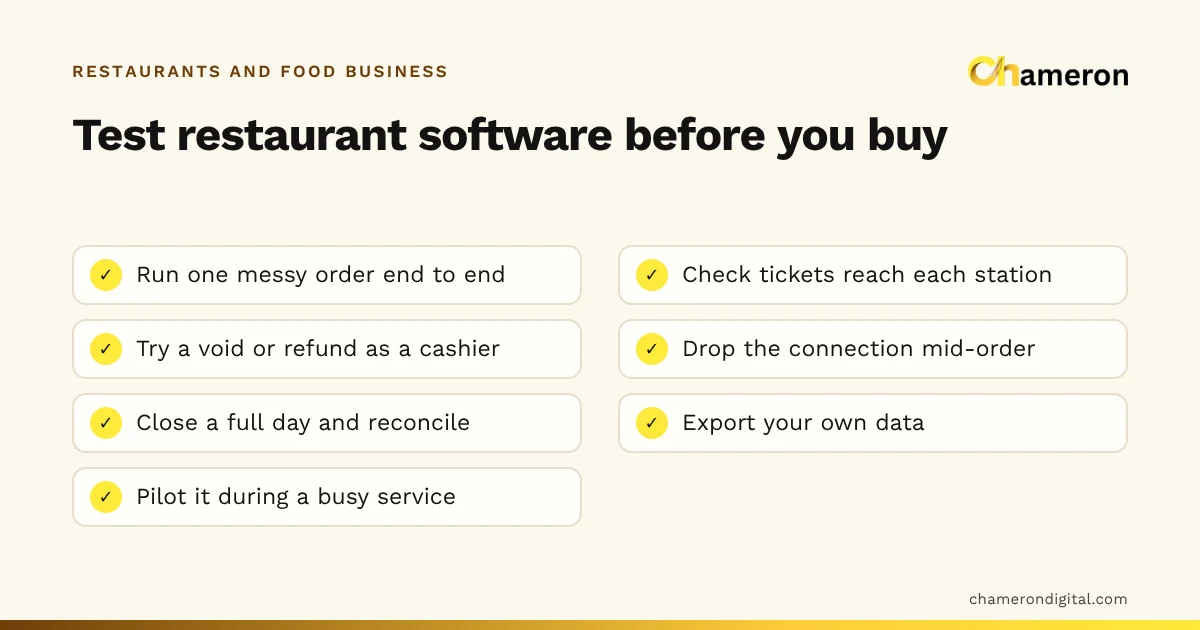
The detailed tests for each of these, including the messy order to run in every demo, are in the restaurant software checklist.
Hardware: what you need and why
Software is only half the purchase. List every device by the place it will sit.
| Device | Where | Why it matters |
|---|---|---|
| Main terminal (PC, laptop or tablet) | Counter | Orders, bills, shifts |
| Extra terminals or waiter devices | Floor | Dine-in orders entered at the table |
| Receipt printer | Counter | Bills and payment slips |
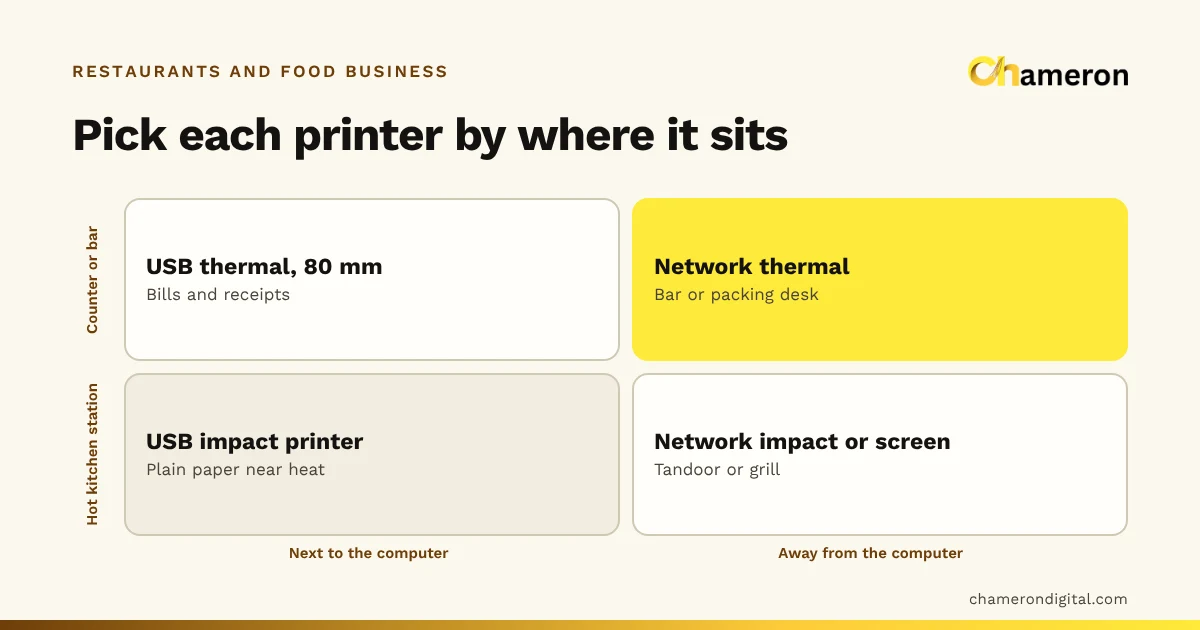
| Kitchen printer(s) | One per station that wants paper | Printed KOTs |
| Kitchen display screen(s) | Pass or each station | Tickets with timers |
| Cash drawer | Counter | Cash with a float and count |
| Card machine and UPI QR | Counter or carried to tables | Payments (often from your bank) |
| Router and power backup | Back office | Keeping terminals and printers connected |
Kitchens are hard on equipment. Heat, steam and oil shorten the life of paper and screens, so place kitchen printers and displays away from the hottest spots. Our restaurant printer guide covers thermal versus impact printers and paper widths, and the hardware selection checklist is a printable list to take to suppliers.
How many terminals? Count from the peak
Use your own numbers: a week of handwritten tallies at the peak hour is enough.
Installed, cloud or both
Restaurant POS systems are built in broadly two ways. Some run in the cloud and are reached through a browser or app; others run on a computer in the restaurant, with the terminals connecting to it over the local network. Many combine the two.
Neither is automatically better. Ask these questions instead:
- What happens when the internet goes down mid-service? Can orders, KOTs and bills carry on?
- What happens when the local network or main computer fails?
- Where is the data stored, and who can get it out?
- How are backups taken, and have you seen a restore work?
For example, DINE OS runs as a desktop app with its own local server and database on the restaurant's computer; receipts and KOTs print through the computer's own printing, and a sale made while the server is unreachable is queued and sent when it is back. Whatever you choose, test the failure cases yourself. Our guide to offline versus cloud billing goes further.
Costs to ask about
Prices are structured in many different ways, so the useful thing is to ask about every line, in writing, for the same setup from each vendor.
| Cost | Questions to ask |
|---|---|
| Software | One-time licence or recurring subscription? Per outlet, per terminal or per user? |
| Setup | Is loading the menu, recipes and staff included, or charged separately? |
| Hardware | Which of my existing devices can I keep? What must be bought new? |
| Training | How many sessions, for which roles, and is retraining for new staff included? |
| Support and updates | What is included, during which hours, and through which channels? |
| Growth | What does an extra terminal, kitchen screen or second outlet cost? |
| Renewal | How are renewal prices set, and how much notice is given of changes? |
| Leaving | Can I export all my data, in what format, and is there a charge? |
Then compare total cost over the period you expect to use the system, not just the first bill. If you want to judge whether the spend pays back, the ROI calculator helps you set expected savings against cost. For Chameron's own structure, see the pricing page.
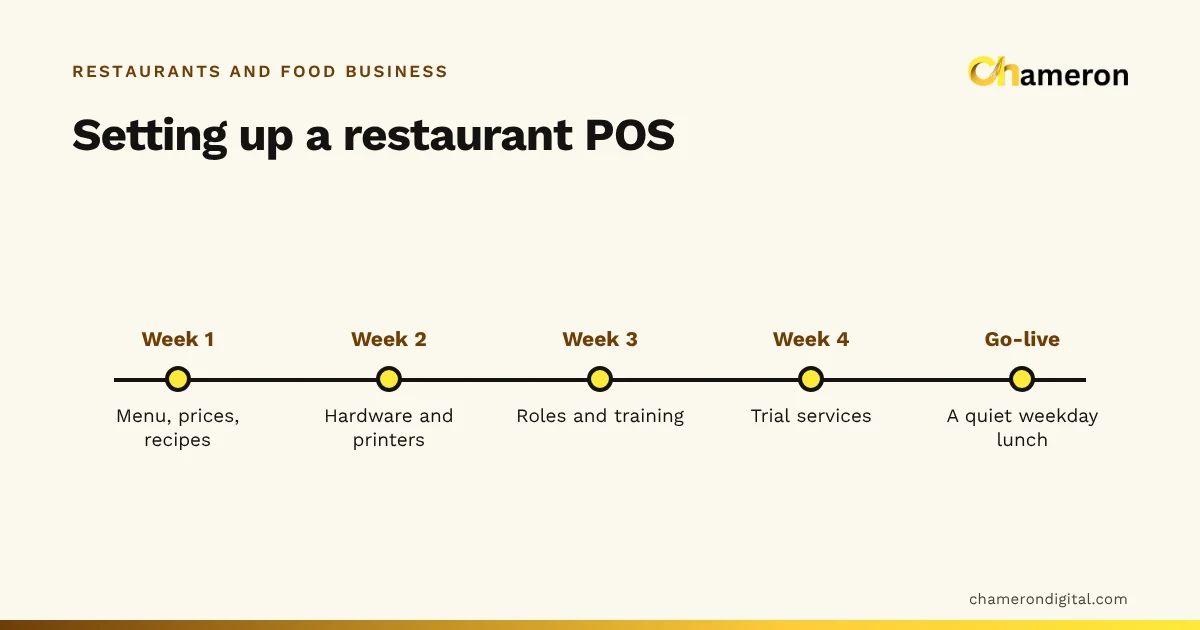
Setting it up: a four-week plan
A rushed setup is how restaurants end up with half-loaded menus and staff sharing one login. Spread it out.
- Week 1: menu, prices and recipes. Enter every item with price, tax rate, station, modifiers and availability. Add recipes, starting with the dishes that use costly ingredients. Use the menu price calculator to check prices while you are at it.
- Week 2: hardware and printers. Install terminals, printers and screens where they will actually live. Print a test KOT at every station and a test bill at the counter.
- Week 3: roles and training. Create a login for each person with the right role: owner, manager, cashier, waiter, kitchen. Train each role on its own tasks, including cancellations and the cash close.
- Week 4: trial services. Run staff meals or a quiet lunch through the system while the old method continues. Fix the stations, modifiers and printer settings that the trial exposes.
- Go-live on a quiet weekday lunch, not a Saturday night, with the paper pad in the drawer just in case.
Before the first live day, take an opening stock count of the ingredients you have recipes for. Without it, the stock figures start wrong and stay wrong.
Common mistakes
- Choosing from a feature list instead of a demo. Ask to see your own messy order run end to end.
- Sizing for the average day. The till that copes on Tuesday may not on Saturday.
- Forgetting the kitchen. A screen nobody can see, or a printer in the steam, sends staff back to shouting.
- Skipping recipes "for now". Stock and food cost reports will mean nothing until they are loaded.
- One shared login. Role limits on refunds and discounts only work when each person signs in as themselves.
- No exit plan. Confirm at the start that you can take your data with you.
The bottom line
A good restaurant POS purchase starts with your format and your busiest hour, covers the hardware station by station, puts every cost in writing and ends with a careful, staged setup. Use the software selection checklist to compare vendors side by side, and the restaurant software checklist to test each one against a real order before you sign.
Questions people ask
How is a restaurant POS different from a retail POS?
A retail POS settles each bill in one go. A restaurant POS keeps bills open for tables, sends tickets to kitchen stations, handles add-ons and cancellations mid-meal and often deducts recipe ingredients rather than whole items. See billing software vs POS software for the wider distinction.
Can I use my existing computer and printer?
Often, yes, but check. Ask the vendor which operating systems and printers they support, then test your actual receipt and kitchen printers before you commit. Our hardware guide lists what to check.
How many POS terminals does a restaurant need?
Work it out from your busiest hour. Multiply the orders in that hour by the time each takes to enter and settle. If one till would be busy for more than about half the hour, plan a second terminal or let waiters enter dine-in orders on their own devices.
Should I choose cloud or installed restaurant software?
Both can work. What matters is what happens when the internet or the local network fails during service, where your data is kept, and how backups are taken. Ask each vendor to show you, not tell you.
How long does it take to set up a restaurant POS?
It depends on the size of the menu and how many recipes you load. A small café might be ready in days; a restaurant with a large menu, several stations and recipes for every dish should allow a few weeks, including trial services.