The short answer
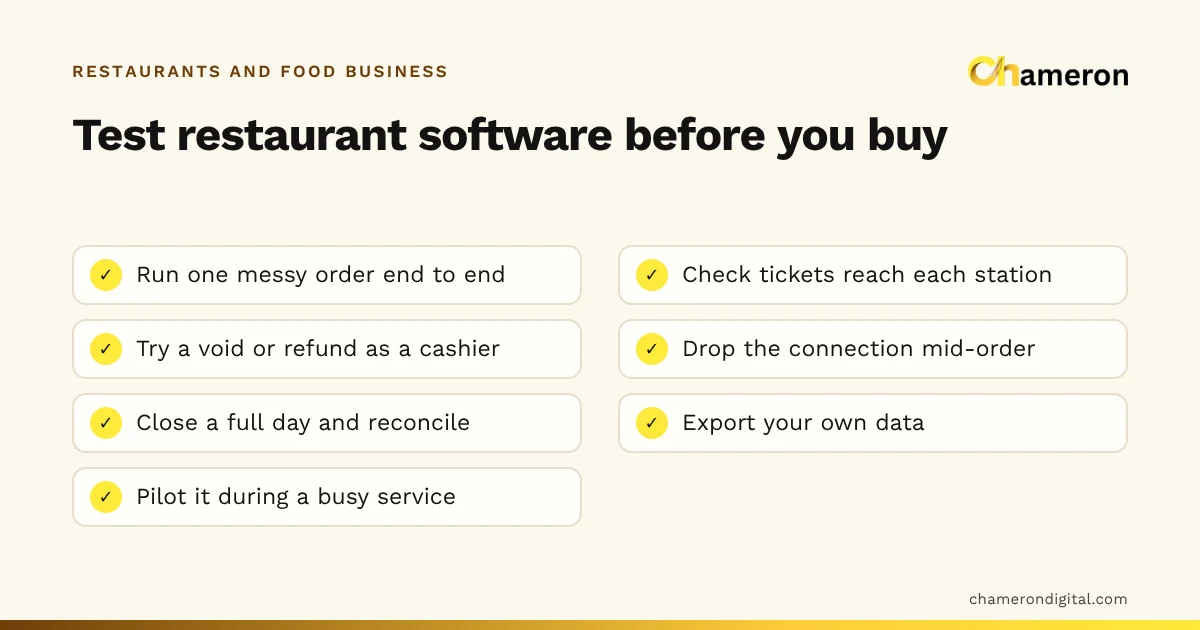
Before you buy restaurant software, test it against your busiest hour, not a quiet demo. Write down how your restaurant runs, then check ten areas: orders, menu, tables, kitchen, stock, payments, staff controls, day close, offline behaviour and hardware, plus cost and support. Make every vendor run the same messy order, score the options with weights, and let a pilot during a real busy service make the final call. The checklist below gives you the questions for each area.
Before the demo: describe your restaurant
Vendors demo what their software does well. To see whether it fits you, write a one-page profile first and send it ahead of the demo.
| Question | Example answer |
|---|---|
| How do you serve? | Dine-in with table service, plus takeaway and our own delivery |
| Which kitchen stations? | Tandoor, main line, bar, dessert counter |
| How many order points? | One counter computer, waiters taking orders at tables |
| Who uses the system? | Owner, manager, two cashiers, six waiters, kitchen |
| What prints, and where? | Bills at the counter; KOTs at tandoor and main line |
| What must reconcile daily? | Cash, UPI and card totals; cancelled items; discounts |
| What do you track in stock? | Paneer, chicken, oil, dairy: the costly ingredients |
Then mark each area in the checklist below as must have, useful or not needed. A café with a counter and no tables does not need a floor plan; a fine-dining room does not need a fast counter screen. Our restaurant POS software guide explains which features matter for which format.
The checklist
Ask each question in the demo and ask to see the answer on screen, not just hear it.
1. Orders and the till
- Do dine-in, takeaway, counter and delivery orders all land in one order list, with their status visible?
- Does every price come from the menu, or can staff type a price at the till?
- Are required choices (size, spice level, add-ons) enforced as modifiers before an item is added?
- Can an order be held and recalled, and moved from one table to another?
2. Menu and pricing
- Is there one menu for every channel, with availability set per channel? You may need a dish on sale in the dining room but paused for takeaway when packaging runs out.
- Can you record each item's cost as well as its price, so margins and food cost can be reported?
- How quickly can a manager switch an item off when the kitchen runs out mid-service?
3. Tables and dine-in
- Is there a floor view showing each table's status: free, occupied, reserved, payment due, being cleaned?
- Can an order be started from a table and the bill kept open while guests keep ordering?
- After payment, does the table go to cleaning first, or straight back to free?
4. Kitchen tickets and the kitchen screen
- Does each item go to its own station, so the tandoor sees only tandoor items?
- Do KOTs or kitchen screen tickets show the table, the time sent and notes beside the item they apply to?
- When an item is added after cooking has started, does the kitchen get only the new item, clearly marked?
- Can the kitchen mark an order ready so the counter sees it, and are late tickets obvious?
5. Stock, recipes and purchasing
- Can menu items be linked to recipes so each sale deducts its ingredients?
- Is waste recorded with a reason, separately from adjustments after a count?
- Are purchase orders, deliveries received and supplier balances kept in the same system?
6. Payments, bills and taxes
- Can a bill be split by item and by amount, and paid by two methods, such as UPI and cash, as a split payment?
- Are invoices numbered in sequence with no gaps, and how are corrections handled?
- Do tax settings and invoice formats meet your requirements? Confirm this with your accountant, not just the vendor.
7. Staff, roles and controls
- Does each role (owner, manager, cashier, waiter, kitchen) get its own screens?
- Are voids, refunds, discounts and price changes limited by role and recorded with who did it and why?
- Is a permission enforced by the system, or is the button only hidden? Ask the vendor to try the action as a cashier.
8. Cash, day close and reports
- Does each shift open with a float and close with a counted total, showing the difference?
- Does the day-close report show sales by payment method, cancellations and discounts, and do the numbers reconcile?
- Can your manager read the sales, item and stock reports without help?
9. Offline behaviour, data and backups
- What happens if the internet drops? If the main computer restarts? Which tasks continue: orders, kitchen tickets, bills, payment?
- How do sales made during an outage reach the main records afterwards?
- Who holds your data, how is it backed up, and can you restore it yourself? Our backup checklist lists what to ask.
- Can you export your sales, menu and customer data in a usable format if you leave?
10. Hardware and printers
- Which computers, screens and printers does the vendor document, and how do they print: through the computer's own printing, or with commands sent straight to the printer?
- Can tickets be routed to different printers by station, such as drinks to the bar?
- What does the software show when a printer is off or out of paper?
The restaurant printer guide covers choosing printers once you know how the software prints.
Run the demo with one messy order
Feature lists hide problems; a real order exposes them. Give every vendor the same script and watch every screen and printout it touches.
- Seat a table of four at table 12 and take the order: two starters from the tandoor, two mains from the main line, four drinks from the bar, one dish "less spicy".
- Ten minutes later, add a dessert and a second round of drinks.
- Cancel one drink that has not been made. Who can approve it, and is the reason recorded?
- Send one main back as too salty and remake it. How is the first plate recorded?
- Move the table to table 14.
- Split the bill: one guest pays for their own items by UPI, the rest is paid in cash.
- Close the shift and run the day close. Do the cancelled drink, the remake and both payment methods appear where you expect?
If a vendor cannot run the script without workarounds, note exactly where. Those notes are worth more than any brochure. For what the flow should look like, compare against the restaurant order workflow.
Score the options
Once you have seen two or three systems, score each area from 1 to 5 and weight it by how much it matters to you. Here is an invented example for a busy dine-in restaurant.
| Area | Weight | System A score | System A points | System B score | System B points |
|---|---|---|---|---|---|
| Kitchen flow and tickets | 25 | 4 | 100 | 3 | 75 |
| Orders and tables | 20 | 4 | 80 | 4 | 80 |
| Day close and reports | 15 | 3 | 45 | 4 | 60 |
| Stock and recipes | 15 | 2 | 30 | 4 | 60 |
| Offline and backups | 15 | 4 | 60 | 3 | 45 |
| Cost and support | 10 | 3 | 30 | 4 | 40 |
| Total (out of 500) | 100 | 345 | 360 |
As a percentage, System A scores 345 ÷ 500 = 69% and System B 360 ÷ 500 = 72%. A gap that small is not a decision; it tells you both are worth piloting, and that the pilot should focus on the areas where they differ most: the kitchen flow and stock. The software selection checklist gives you a blank sheet for this.
Cost, contract and support
Ask for every cost in writing, for the number of devices and users you actually have.
- Licence or subscription: what it covers, per device or per location, and how renewals work.
- Hardware: what you must buy, and whether your existing printers and computers can be used.
- Setup: menu entry, training and data migration, and who does each.
- Support: how to reach it, during which hours, and what happens on a Saturday night.
- Changes: what a new feature request, an extra terminal or a second outlet would cost.
- Leaving: how you get your data out, and in what format.
Use the ROI calculator to set the total cost against the time and waste you expect to save, using your own estimates.
Red flags
- Prices can be typed at the till by anyone.
- Voids and refunds leave no record of who did them.
- "It works offline" with no clear answer on what, exactly, continues.
- A promised integration that is "coming soon" but not in writing.
- No way to export your own data.
- The vendor will only demo prepared screens, not your scripted order.
Be just as clear with any vendor about what their product does not do. If DINE OS is on your shortlist, for example, its product page lists what it covers, and it is not built to take in orders from delivery platforms today; if that matters to you, ask us before you decide.
Pilot it during a real service
A pilot is the most honest test you can run.
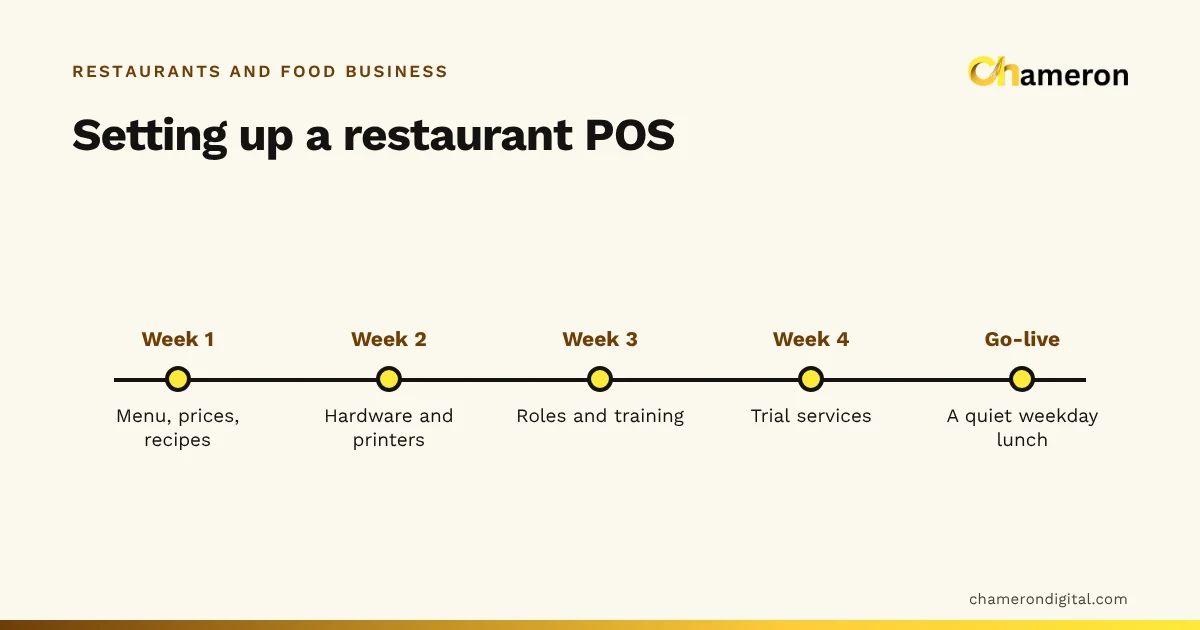
- Week one: enter the real menu with stations and modifiers, set up roles, and connect your printers.
- Quiet services: run the new system alongside your current one at lunch, with the manager watching.
- A busy service: run it on a Friday or Saturday evening, with your current process ready as a fallback.
- Every day: run the full day close and compare it with your existing totals.
- At the end: ask cashiers, waiters and cooks where they had to work around the software.
Common mistakes
- Choosing from a feature list. A long list says nothing about how quickly a waiter can send an order at 9 pm.
- Letting only the owner see the demo. The cashier and the head cook will spot problems the owner will not.
- Testing on a quiet afternoon. Problems appear under load, so pilot during a rush.
- Ignoring the day close. If the numbers do not reconcile in the demo, they will not in your restaurant.
- Buying hardware first. Check how the software prints before buying printers.
- Forgetting the exit. If you cannot export your data, you cannot easily leave.
The bottom line
The right restaurant software is the one your staff can run during your busiest hour without calling the owner, and that tells you clearly what happened when the day is over. Describe your restaurant, ask the ten sets of questions, run the same messy order with every vendor, score the results and pilot the leader. If you are still deciding what kind of system you need, start with what restaurant management software is or use our software finder.
Questions people ask
What should I look for in restaurant software?
Start with the order flow: one list for every channel, tickets routed to kitchen stations, tables linked to bills, and prices that come from the menu. Then check controls on voids and refunds, a day close that reconciles, stock that follows recipes if you need it, offline behaviour, and how you get your data out.
How long should a restaurant software demo take?
Long enough to run your own scripted order from start to finish, a day close and a few what-if questions: usually an hour or more. A short demo that only shows the vendor's prepared screens tells you little about your busiest hour.
Should restaurant software work offline?
It should at least keep taking orders and printing bills if the internet or the main computer is briefly unreachable, and send those sales to the main records when the connection returns. Ask exactly which tasks continue and how conflicts are handled. Our question page on billing without internet explains the options.
Do I need inventory and recipes in my restaurant software?
Not on day one. If food cost is a concern, choose software that can link recipes to ingredients so each sale deducts stock, then start by tracking only your costliest ingredients. See our guide to restaurant inventory management.
How many systems should I compare?
Two or three is usually enough. Shortlist from your must-have list, run the same scripted demo with each, score them, and pilot the leader during real service.