The short answer
POS software is the program that runs the point of sale: the counter where a customer pays. It records what is being bought, takes payment by cash, UPI or card, prints the receipt and keeps track of the cash in the drawer from the start of a shift to the end. Combined with hardware such as a scanner, receipt printer and cash drawer, it becomes a POS system, and it is usually also where stock, customer and sales records start.
What "point of sale" means
The point of sale is both a place and a moment: the counter, table or desk where the sale is settled, and the instant the customer pays. Everything a business does before that moment, such as buying stock, pricing it and displaying it, is preparation. Everything after it, such as reports, tax summaries and reordering, depends on the sale being recorded correctly at that moment.
That is why the POS has always been the control point of a shop. The cash register did one job: add up the sale and lock away the money. POS software does that job and much more. It knows each item’s price, tax and stock; it records who sold what and how the customer paid; and it can tell the owner at nine in the evening exactly what should be in the drawer.
The parts of a POS system
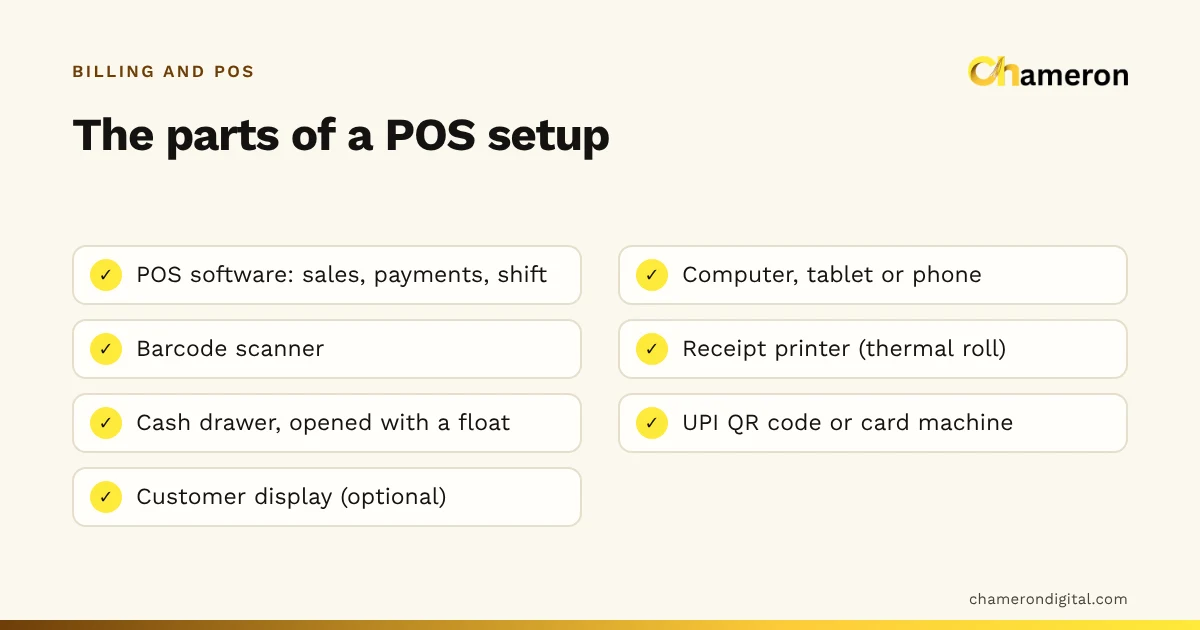
POS software is the core, but it rarely works alone. A typical counter has some of the following:
| Part | What it does | Who needs it |
|---|---|---|
| POS software | Records sales, payments, returns and the shift | Every counter |
| Computer, tablet or phone | Runs the software and shows the bill | Every counter |
| Barcode scanner | Reads product codes instead of typing | Shops with packed or labelled goods |
| Receipt printer | Prints receipts on thermal rolls | Most counters; some customers prefer a digital bill |
| Cash drawer | Holds cash securely during the shift | Counters that take meaningful cash |
| UPI QR code or card machine | Lets customers pay digitally | Almost every counter today |
| Customer-facing display | Shows the customer each item and the total | Busy counters, and wherever trust matters |
| Label printer and weighing scale | Labels unbarcoded or loose goods | Clothing, grocery and fresh produce |
Two points are easy to miss. First, the UPI QR code and card machine usually belong to your bank or payment provider, not to the POS; the POS records that a UPI or card payment was made, and the cashier confirms the money arrived. Second, hardware must work with your software. Use our hardware selection checklist and test each device with the actual software before buying several.
What POS software does during a shift
The clearest way to understand POS is to follow one shift. A shift is the period one cashier (or one counter) is responsible for the drawer, often a full trading day in a small shop.
- Open with a float. The cashier counts the change in the drawer, the float, and enters it, for example ₹2,000.
- Sell. Each customer’s items are added, payment is taken and the receipt prints. A customer who goes back for one more item can have their bill put on hold while the next person is served.
- Take mixed payments. One bill may be part UPI, part cash. The POS records each part separately so the drawer is not blamed for money that went to the bank.
- Handle returns. A refund in cash comes out of the drawer, so the POS records it against the shift.
- Record pay-ins and pay-outs. Cash paid for a courier or tea, or change brought in from the bank, is recorded with a reason.
- Close with a count. The cashier counts the drawer. The POS compares the count with the cash it expects.
A worked shift close
A clothing shop’s counter on a weekday:
| Item | Amount |
|---|---|
| Opening float | ₹2,000 |
| Cash sales (cash part of every bill) | ₹18,450 |
| Cash refund for a returned shirt | −₹350 |
| Pay-out for a courier | −₹600 |
| Expected cash | ₹19,500 |
| Counted cash | ₹19,420 |
| Difference | ₹80 short |
UPI and card sales do not appear here at all; they are checked against the bank and payment app separately. An ₹80 difference found on the same evening can usually be explained (a wrong change, a pay-out not recorded). The same ₹80 discovered at the end of the month, mixed into thirty days of sales, usually cannot. Many POS programs ask the cashier to count before showing the expected figure, a "blind" count, so the count is honest.
POS software for different businesses
The basic loop of sell, pay and close is universal, but what happens around it differs by trade.
- Clothing and footwear. Each size and colour is a separate variant with its own barcode and stock, and exchanges are frequent. See retail shops and size and colour variants.
- Grocery and kirana. Hundreds of small bills a day, loose items sold by weight, and a queue that never stops. Fewer keystrokes per bill matters more than anything. See grocery shops.
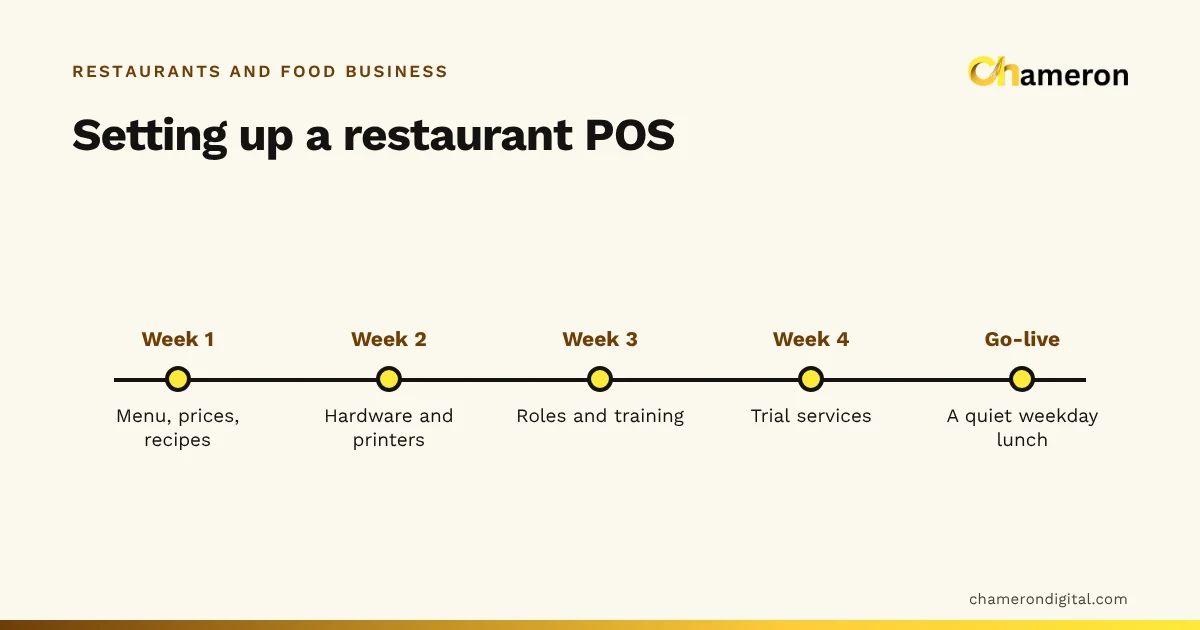
- Restaurants and cafés. An order is placed first and paid for later, so the POS has to send items to the kitchen, track tables and keep a bill open while food is prepared. A restaurant POS such as DINE OS is built around that flow; our restaurant POS guide covers it in depth.
- Several counters or stores. Each counter has its own drawer and shift, while stock and reports must add up across them. See multi-counter businesses.
What the owner gets from POS software
Every sale passing through one system produces numbers the owner can act on the same day:
- Sales by payment method, to reconcile cash, UPI and card separately.
- Top-selling and slow items, to decide what to reorder and what to clear.
- Discounts, cancellations and refunds, the places where money most often leaks.
- Sales by cashier or salesperson, for incentives and training.
- Average bill value, a simple measure of how much each customer spends.
For example, if a counter takes ₹42,600 across 120 bills in a day, the average bill value is ₹42,600 ÷ 120 = ₹355. Raising it to ₹380 through better displays or add-on suggestions would add ₹25 × 120 = ₹3,000 a day at the same footfall. The average bill value question page explains the measure, and the sales target calculator turns it into a monthly target.
How to choose POS software
Start from your own counter, not from a feature list. Write down what you sell, how many bills you make on your busiest day, how customers pay and what goes wrong today. Then ask each option:
- Speed. Can a regular bill be done from the keyboard or scanner without hunting through menus?
- Payments. Does it record cash, UPI, card and split payments separately, and handle credit if you give it?
- The shift. Does it open with a float, record pay-outs and close with a count that flags differences?
- Returns. Are returns and exchanges made against the original bill, with tax reversed correctly?
- Connection. What happens when the internet or the local network drops? See does billing software work without the internet?
- Control. Can a cashier bill without being able to change prices or delete bills?
- Your data. Can you export reports, and how are backups made and tested?
For retail counters, BILL OS handles the shift this way: the drawer opens with a float, pay-ins and pay-outs are recorded with a reason, and staff close with a blind count that flags any difference, as described on the cash drawer and staff page. Our software selection checklist helps you compare any options side by side.
Common mistakes with POS software
- Buying hardware before choosing software. A printer or scanner that does not work with your POS is money spent twice.
- Skipping the shift close on busy days. Busy days are when drawer errors happen. Close every shift, every day.
- Sharing one login. If everyone bills as "admin", a short drawer or a deleted bill cannot be traced to a shift or a person.
- Recording UPI as cash (or the reverse). The bill total is right, but the drawer and the bank will both disagree with the POS.
- Treating the POS as a till only. If stock, customers and returns are kept elsewhere, much of the value of the system is lost.
The bottom line
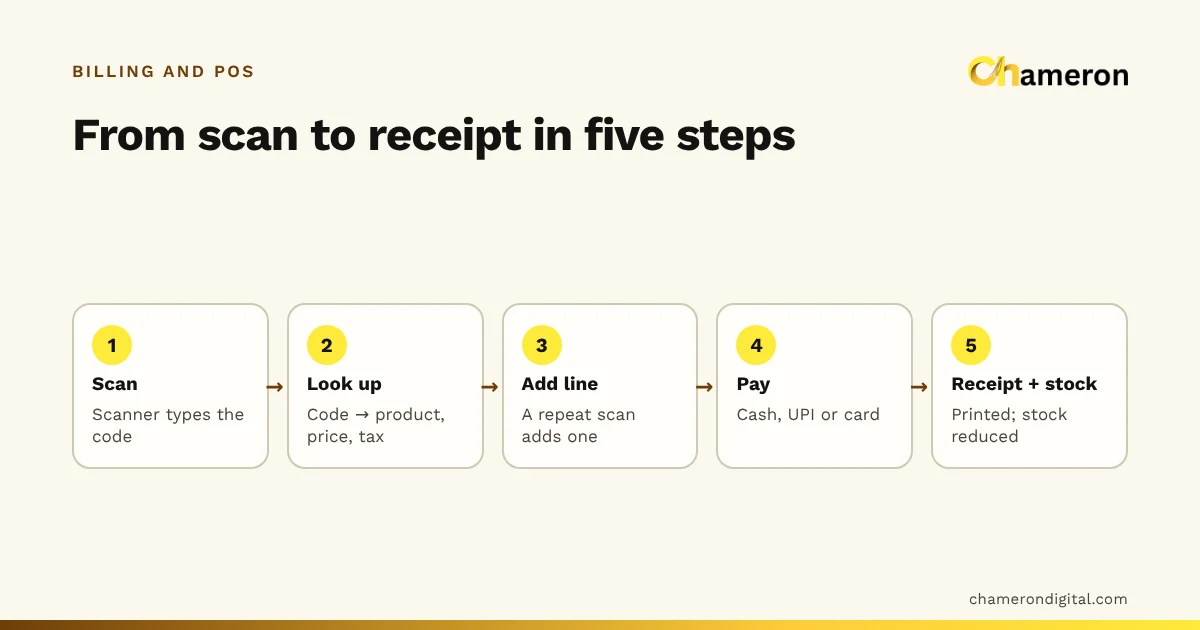
POS software is the system at the moment a customer pays. It prices the sale, records the payment, prints the receipt and keeps the cash drawer accountable shift by shift, and every report the owner reads later depends on it. Choose one that suits your counter’s speed, payments and trade, test it with your own hardware, and use the shift close every day. To see how scanning fits into this, read how barcode billing works.
Questions people ask
What does POS stand for?
POS stands for point of sale: the place and moment at which a customer pays for goods or services. POS software is the program that runs that counter.
Do I need special hardware for POS software?
Usually not special, but compatible. Many POS programs run on an ordinary computer or tablet and work with standard scanners and receipt printers. Check the software’s requirements and test your own devices before buying; our hardware guide explains what to look for.
Can a phone or tablet be used as a POS?
Often, yes. Some POS software runs entirely on a tablet, and some lets phones and tablets bill while connected to a main shop computer. A phone works well for a small or mobile counter; a busy counter usually benefits from a proper scanner and printer.
Is POS software only for retail shops?
No. Restaurants, cafés, grocery stores, salons and service counters all use POS software, but each needs different features, such as tables and kitchen tickets for restaurants or quick weighed-item billing for grocery.
What is the difference between POS software and billing software?
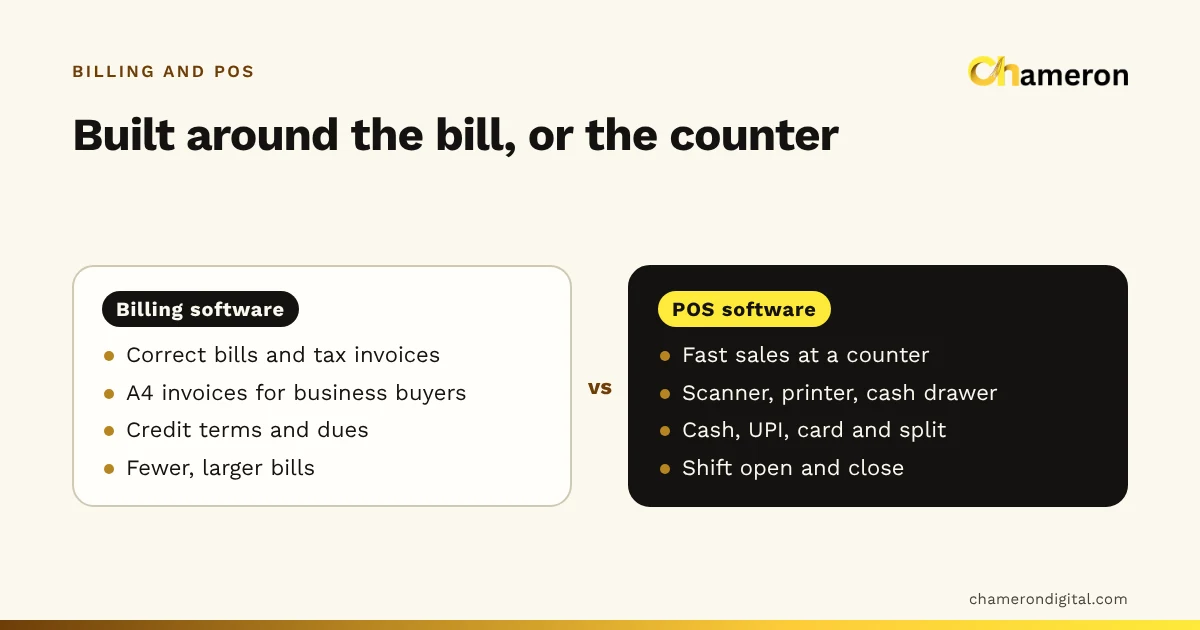
They overlap heavily. POS software centres on the live counter transaction and the cash drawer; billing software centres on producing correct bills and invoices. Our comparison of billing software vs POS software explains when the difference matters.