The short answer
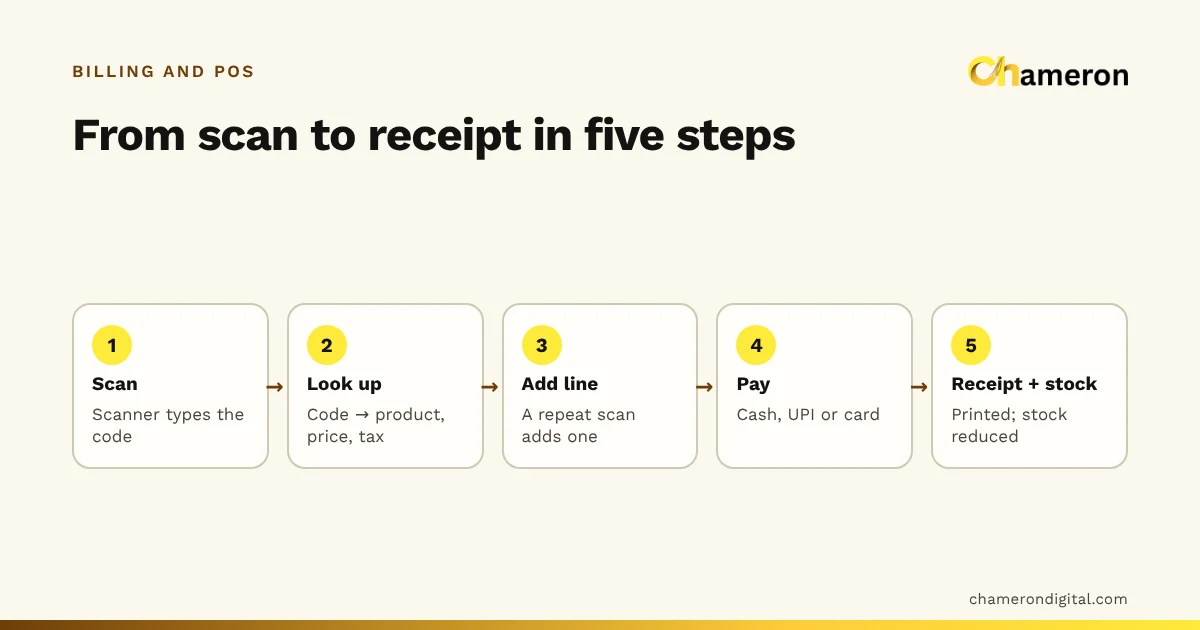
Barcode billing works by turning a scan into a lookup. The scanner reads the stripes and types the number they encode into the billing screen. The billing software finds the product with that number, adds a line with its price and tax, and repeats for each item. When the bill is paid and completed, it prints the receipt and reduces the stock of every item scanned. The barcode itself holds only a number; everything the customer sees on the receipt comes from the product record in the software.
What a barcode actually contains
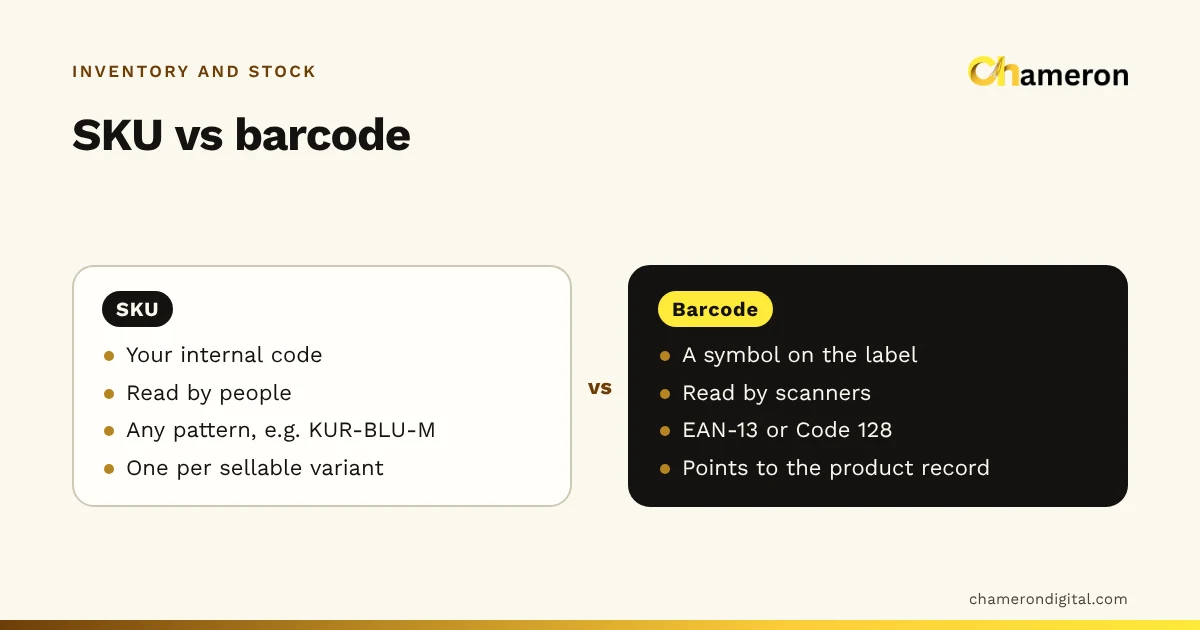
A barcode is a number written in a form a machine can read quickly. The bars and spaces encode digits (or, in some formats, letters too). There is no price, no product name and no expiry date in a standard retail barcode, only an identifier.
The two formats you will meet most often at an Indian counter are:
- EAN-13: the 13-digit code on most packed consumer goods. Codes registered through GS1 India usually begin with 890. Shops can also create in-store EAN-13 codes for their own items.
- Code 128: a flexible format that can hold letters and numbers, often used on shop-printed labels where the code is an SKU such as KURTA-BLU-M.
QR codes, like the UPI code at the counter, can hold far more information, but product billing in most shops still runs on simple one-dimensional barcodes.
The check digit
The last digit of an EAN-13 code is not part of the identifier. It is calculated from the first twelve digits so that the scanner can tell when it has misread a stripe.
| Step | Invented code: 8 9 0 6 1 2 3 4 5 6 7 8 | Result |
|---|---|---|
| Odd positions | 8 + 0 + 1 + 3 + 5 + 7 | 24 |
| Even positions × 3 | (9 + 6 + 2 + 4 + 6 + 8) × 3 = 35 × 3 | 105 |
| Total | 24 + 105 | 129 |
| Check digit | 10 − 9 | 1 |
The full code is 8906123456781. If a smudge makes the scanner read one digit wrongly, the check digit no longer matches and the scan is rejected rather than turned into the wrong product. That is why barcode billing is so much more reliable than typing codes by hand.
From scan to receipt, step by step
Here is what happens in the second or two between the beep and the line appearing on the bill.
- The scanner reads the code. A laser or camera reads the stripes, decodes the digits and checks the check digit.
- The scanner "types" the number. Most USB and wireless scanners behave like a keyboard. They type the digits into whichever field has focus and press Enter. This is why the cursor must be in the item search box when you scan.
- The software looks up the code. It searches its product list for a product or variant with that exact barcode.
- A line is added. The line takes the product’s name, selling price and tax details from the product record. Scanning the same item again usually adds one to the quantity rather than a new line.
- The bill is priced. Discounts, offers and tax are applied to the lines, exactly as they would be for an item found by name.
- The customer pays. Cash, UPI, card or a mix, recorded against the bill.
- The bill completes. The receipt prints, the bill is numbered, and each scanned item’s stock goes down by the quantity sold.
Steps 3 and 4 are where barcode billing either shines or causes trouble. If the product list is clean, every scan finds exactly one item. If it is not, the problems in the next sections appear. The wider sale process, from opening the counter to closing the drawer, is covered in what is POS software.
What the software must already know
Because the barcode is only a key, the work happens when the product is created. For each item the software needs at least:
| Field | Example | Used for |
|---|---|---|
| Barcode | 8906123456781 | Finding the item on scan |
| SKU | KURTA-BLU-M | Your own code, also searchable |
| Name and variant | Cotton kurta, blue, size M | The receipt and reports |
| Selling price | ₹899 | The bill |
| Tax details | GST rate and HSN code | Tax on the bill and the tax summary |
| Stock | 14 | Reduced on every sale |
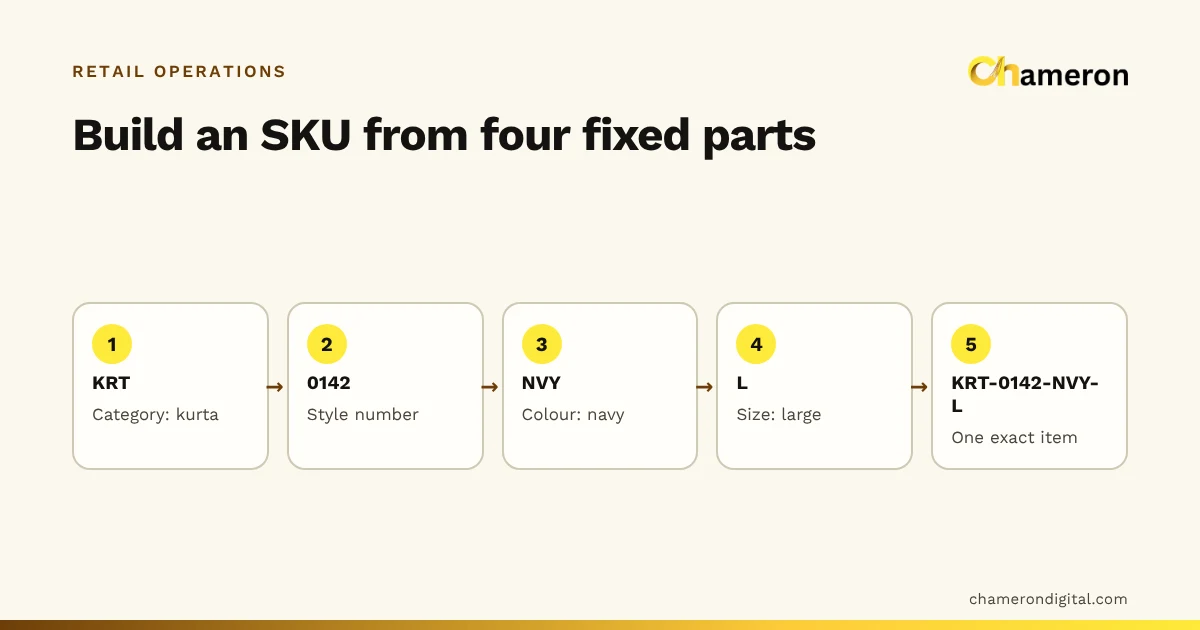
The most important rule: every variant that is stocked and priced separately needs its own barcode. If sizes S, M and L of the kurta share one barcode, a scan cannot tell them apart, and the software will reduce the wrong size’s stock. Three sizes in two colours is six variants, and six barcodes. Our guides to SKU naming and size and colour variants cover how to set these up.
Example: one basket at a general store
A customer brings five kinds of item to a general store counter. Shelf prices include GST, as they usually do in retail.
| Item | How it was added | Qty | Price | Amount |
|---|---|---|---|---|
| Biscuits, 200 g | Scanned twice | 2 | ₹30 | ₹60 |
| Toothpaste, 150 g | Scanned once | 1 | ₹95 | ₹95 |
| Notebook, 172 pages | Scanned once, quantity changed to 3 | 3 | ₹45 | ₹135 |
| Rice, loose | Weighed, 2 kg at ₹60 per kg | 2 | ₹60 | ₹120 |
| Steel scrubber | No barcode: found by name | 1 | ₹25 | ₹25 |
| Total | ₹435 |
The customer pays ₹435 by UPI. When the bill completes, stock moves with it: biscuits from 48 to 46, notebooks from 20 to 17, toothpaste from 12 to 11, rice from 50 kg to 48 kg and scrubbers from 30 to 29.
Notice the notebooks. Scanning one and changing the quantity to 3 is fine only because all three are identical. Had they been three different notebooks, each would need its own scan. Over a month, that one habit decides whether the stock figures can be trusted for reordering; once they can, the reorder point calculator tells you when to buy more.
Items without a barcode, or with the wrong one
Every shop has items that do not scan cleanly. Decide in advance how each kind is handled.
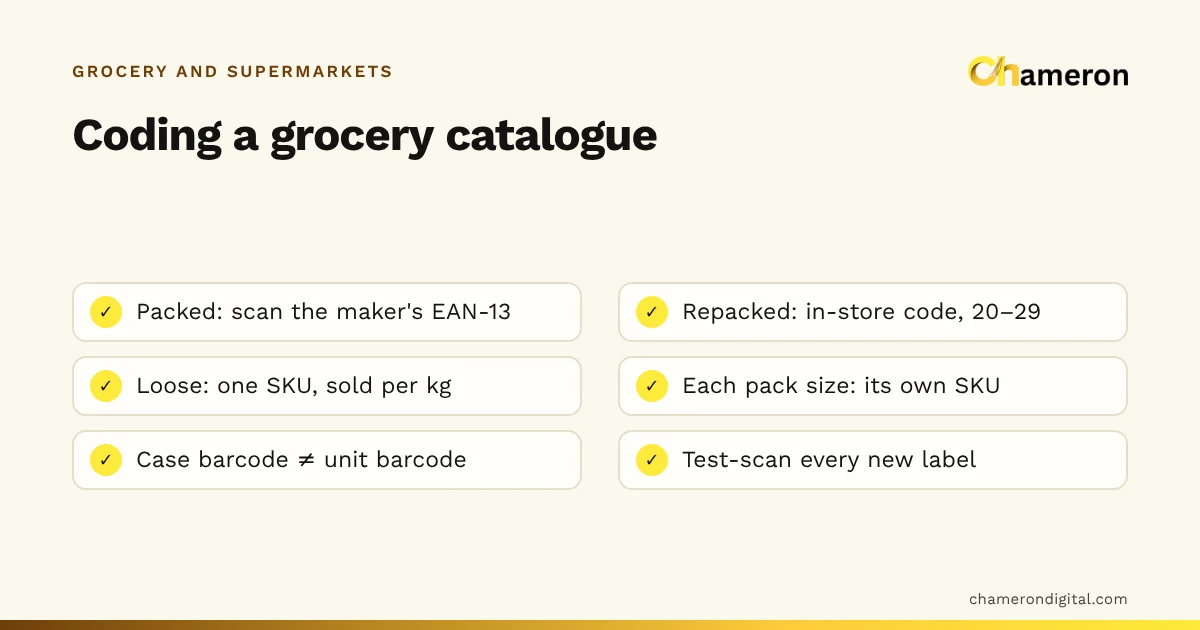
- No barcode at all. Find the item by name or SKU, or better, give it an in-store barcode and print a label. Anything sold daily should be labelled.
- Loose and weighed goods. Some shops weigh at the counter and enter the weight; others use a scale that prints a label at the shelf. How a scale label is read depends on the scale and the billing software, so test it before relying on it.
- Packs and outer cartons. A pack of 6 and a single unit often carry different barcodes. If only the single is recorded, scanning the pack will fail, or worse, sell one unit at the single price.
- Unknown code. The scan finds nothing. Stop and add or correct the product; do not bill it under a generic "miscellaneous" line, or its stock will never be right.
- Duplicate code. The same barcode on two product records. Good software asks the cashier to choose or refuses, rather than guessing; the fix is to correct the product list.
- Damaged label. Search by name, then relabel the item before it goes back on the shelf.
Setting up barcode billing
- Choose a scanner that works as a keyboard (USB or wireless). Test it by scanning into Notepad: the digits should appear, followed by a new line.
- Clean the product list before adding barcodes: one record per variant, no duplicates.
- Record existing barcodes from packaging, and create in-store codes for items without one.
- Print labels and test them. Print a few, scan each one, then print the full run. Our hardware selection checklist helps with scanners and label printers.
- Train the counter on the exceptions above, especially packs and unknown codes.
In BILL OS, the item search on the sales screen accepts a scan, products without a barcode can be given in-store EAN-13 codes, and labels print on thermal rolls or A4 sheets, as described on the SKUs, barcodes and labels page. The help article on using a barcode scanner covers setup and fixes.
Common mistakes
- One barcode for several variants. Sales are recorded against the wrong size or colour, and stock by variant drifts.
- Scanning one and typing a quantity for different items. Quick at the counter, wrong in the stock ledger.
- Billing unknown items as "miscellaneous". The sale is recorded but no stock is reduced, which looks like shrinkage at the next count.
- Printing hundreds of labels untested. A wrong label size or a format the scanner cannot read means reprinting everything.
- The scanner set to the wrong keyboard layout. Some characters arrive changed, and codes do not match. Set the scanner to a US keyboard layout if scans look wrong.
- Ignoring the stock count. Even good barcode billing needs a regular stock count and reconciliation to catch damage, theft and mis-scans.
The bottom line
Barcode billing is simple once you see that the barcode is only a key. The scanner types a number, the software looks it up, and the product record supplies the price, tax and stock. Its speed and accuracy depend almost entirely on that product list: one record and one code per variant, labels for anything that arrives without them, and a clear routine for codes the system does not know. For the inventory side of barcodes, from receiving to counting, read our barcode inventory guide.
Questions people ask
Does a barcode contain the price of the product?
No. A standard product barcode holds only an identifying number. The billing software looks that number up in its product list to find the price, tax and stock. That is why changing a price in the software changes it at the counter without relabelling.
Do I need special software to use a barcode scanner?
Usually not. Most USB and wireless scanners behave like a keyboard and type the code into the focused field. Your billing software needs to accept a scan in its item search and match it to a product. Test it by scanning into Notepad first.
What if a product has no barcode?
You can find it by name or code at the counter, or give it an in-store barcode and print labels for it. For anything sold often, labelling is faster and avoids picking the wrong item.
Can I scan barcodes with a phone camera?
Often, yes, if the billing software supports camera scanning on that phone and browser. It is fine for small counters or occasional use; a dedicated scanner is faster for a busy counter.
Why does the same item scan as two different products?
Usually because the same barcode has been entered on two product records, often after an import or a supplier change. Fix the duplicate in the product list so each code points to exactly one item.