
BILL OS · Billing and payments
Fast billing at the counter, from the keyboard
Every step a cashier repeats has a key, so a sale can go from customer to receipt without touching the mouse, even with a queue at the counter.
How it works
Step by step, and why each step matters.
Each step says what the software does, then what it means for your business.
- 01
Find the customer
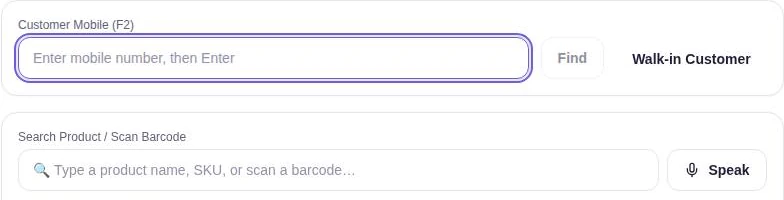
Type a mobile number (F2) to bring up the customer, or bill a walk-in.
Bills land on the right customer’s account, so credit and loyalty stay accurate.
- 02
Add the items
Scan a barcode, search by name or SKU, or add by voice with Speak, in English or Hindi. Nothing is added until the cashier checks it.
The cashier keeps their eyes on the customer and the scanner, not on menus.
- 03
Hold if you need to
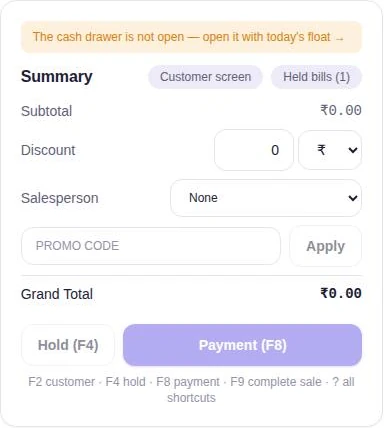
Park the whole bill (F4) with its customer, discounts and promo codes, and serve the next person. Up to 50 held bills per store, kept for 7 days.
A customer who goes back for one more item does not stop the queue.
- 04
Take payment
Cash, UPI, card or a split across several methods (F8). Change is worked out from the cash part only, and the rest can be left on credit.
Mixed payments are recorded exactly as they were made, which makes the day close simple.
- 05
Complete and print
Complete the sale (F9). The receipt prints on a 58 mm or 80 mm roll or as an A4 bill, stock updates and the customer’s balance is current.
One action updates everything it touches. Nobody re-types a sale into another book.
In the software
What it looks like.
Screens from BILL OS, running with demo data.
Worth knowing
The details that matter.
Shortcuts on screen
Press ? to see every shortcut and / to jump to search. A mouse is optional when there is a queue.
A customer-facing screen
A second screen can show the customer what is being billed.
Billing that survives a dropped connection
If a phone or tablet loses its connection to the shop computer, it keeps billing with the cached catalogue. Each bill carries its own ID, so a repeat never creates a copy, and it syncs with its real number when the connection returns.
Receipts that fit the roll
The receipt’s length is measured from its content, so the printer does not feed a blank page.
Questions
About billing and checkout.
Which printers does it print to?
Receipts print through Windows printing, so any receipt printer Windows can print to can be chosen once and reused. Test your own printer before you rely on it; see the hardware guide.
Does voice billing send audio anywhere?
Speech is turned into text by the browser engine. In Chrome that uses Google’s speech service. Products are matched on the device, and the cashier confirms every item.
Can phones bill too?
Yes. Phones and tablets on the same network open BILL OS in a browser while it is running on the shop computer.
Related
More from BILL OS.
- BILL OSSKUs, barcodes and labelsA product gets an SKU the moment it is created, and a barcode if you ask. Sizes and colours become real variants, each with its own code, price and stock.
- BILL OSCash drawer, staff and permissionsOpen the drawer with the change you start with, record cash in and out with a reason, and close with a count. Each login sees only what its role allows.
- BILL OSCustomers, credit and loyaltyWho owes what should not depend on one person’s memory. BILL OS keeps each customer’s bills, dues and points together, and reminds them when you choose.
Guides on this topic
- Guide · 9 min readWhat Is Billing Software and How Does It Work?Billing software is the program that turns a sale into a bill. The bill is the visible part; the real work is everything a single sale updates behind it: stock, the customer’s balance, the cash drawer and the tax records.
- Guide · 8 min readHow Barcode Billing Works: From Scan to ReceiptA barcode does not contain a price. It contains a number, and everything else comes from the billing software. Here is what happens in the second between the beep and the line on the bill, and what to do when a scan goes wrong.
- Guide · 8 min readHow to Choose Billing Software for a Small ShopStart from your own counter, not from a feature list. Map how your shop works, decide what is essential, test shortlisted software with your own products and hardware, and compare the full cost over several years.
- Guide · 7 min readBilling Software vs Manual Billing: Which Is Better for a Small Shop?A bill book is cheap, needs no power and everyone knows how to use it. Billing software wins on everything that happens after the bill is written. Here is how to tell which one your shop needs.
See billing and checkout in BILL OS.
Ask for a demo on your own products and workflow. From ₹499 a month.