The short answer
Business automation helps a small business most when it removes work that is frequent, follows clear rules, goes wrong when done by hand and is easy to check, such as stock updating itself from every sale, daily reports, reminders and backups. It is risky when it hides a decision that needs a person, such as refunds, price changes or messages to customers. Start with one task, check it for a month, then add the next.
What automation means in a small business
In a small business, automation rarely means robots. It usually means one of three things:
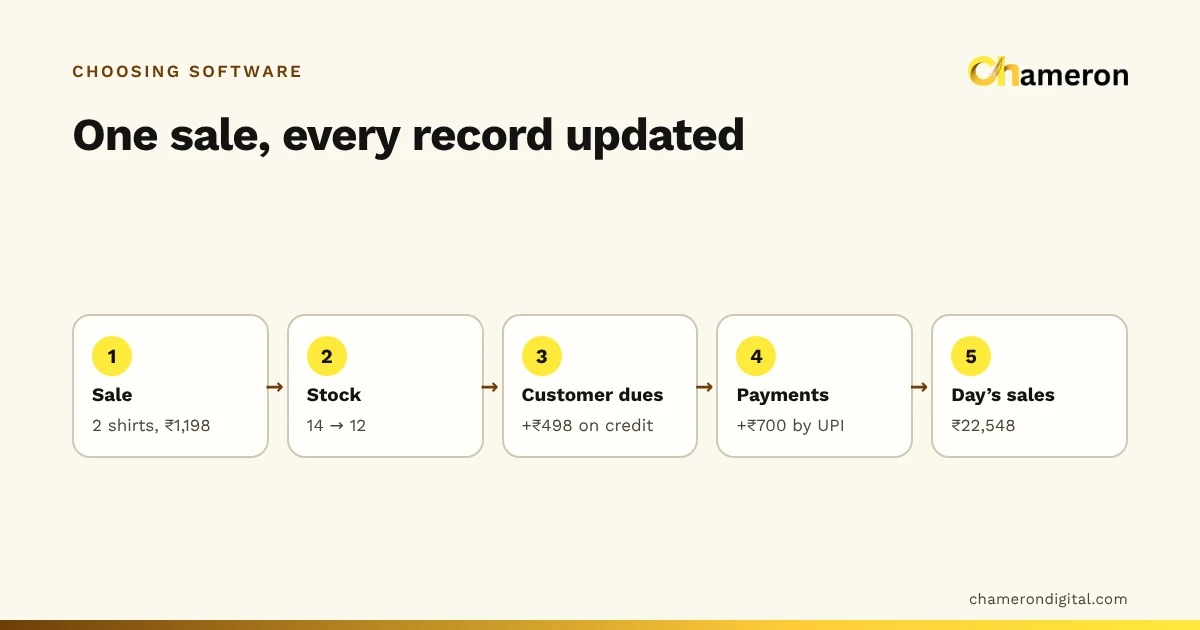
- One entry, many records. A cashier makes one bill, and the stock, the cash expected in the drawer, the customer’s balance and the tax summary all change with it. Nobody copies the bill into a register later.
- Scheduled jobs. Work that happens on a clock: the backup at night, the sales summary at closing, the renewal list every Monday.
- Rules that raise a flag. When something crosses a line, the system says so: stock below its reorder point, a discount above 20%, a drawer short by more than ₹100.
The first kind usually saves the most time, because it removes the double entry that eats an hour or two of someone’s day. The third kind usually saves the most money, because it catches problems while they are still small.
A four-question test
Before automating a task, ask four questions:
- Does it happen often? Daily or weekly work repays the setup; a once-a-year task rarely does.
- Does it follow clear rules? If two staff members would do it the same way, a system can too.
- Is it error-prone by hand? Copying numbers, adding columns and remembering dates are where people slip.
- Is it easy to check and reverse? If a mistake would be obvious and simple to undo, automation is low-risk.
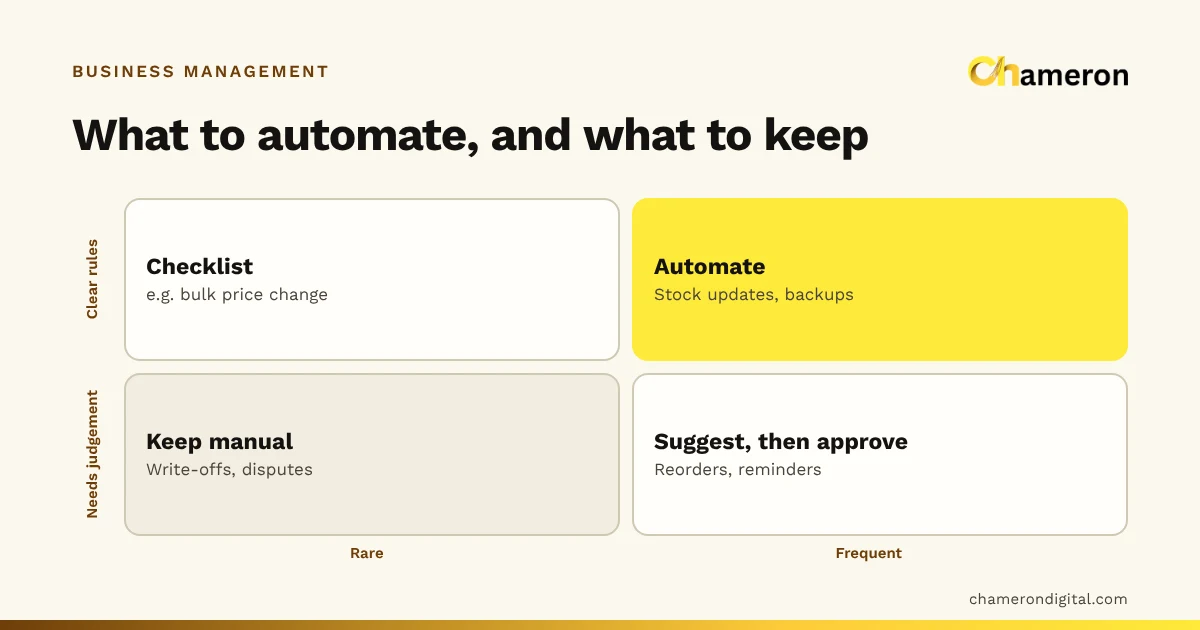
Four yes answers: automate. Mostly no: keep it manual, perhaps with a checklist. In between: let the system prepare the work and a person approve it.
| Task | Often? | Clear rules? | Error-prone by hand? | Easy to check? | Verdict |
|---|---|---|---|---|---|
| Stock reduced on each sale | Yes | Yes | Yes | Yes | Automate |
| End-of-day sales and payments summary | Yes | Yes | Yes | Yes | Automate |
| Backups | Yes | Yes | Yes (forgotten) | Yes, if verified | Automate |
| Reorder list | Yes | Mostly | Yes | Yes | System suggests, person approves |
| Payment and renewal reminders | Yes | Mostly | Yes | Partly | Automate with limits |
| Refunds and write-offs | Sometimes | No | Not really | Hard to undo | Keep a person in charge |
| Price changes across the shop | Rarely | Yes | Yes | Hard once printed | Person approves each batch |
| GST return filing | Monthly or quarterly | Yes, but legal | Yes | Needs review | Software exports; you or your accountant file |
Where automation pays off
At the counter
The bill is the source of truth. When it updates stock, cash and dues on its own, the evening’s copying disappears, and the shelf and the screen stop drifting apart. Barcodes help here too: a scan cannot mistype an item code. Our guide on how barcode billing works shows the steps.
Stock and reordering
A reorder list built from real sales and supplier lead times is far better than a walk down the aisles. The rule is simple arithmetic, explained in what is a reorder point and the reorder point calculator, but someone should still glance at the list before ordering: a festival, a new competitor or a discontinued line changes what you need.
In a kitchen the same idea goes one step further. When each menu item is linked to its recipe, every sale can deduct its ingredients. DINE OS works this way: recipes linked to ingredients mean each sale deducts what it used, so the ingredient stock and its low-stock flags follow real sales.
Money at the day close
Instead of adding up bills by hand, the system works out the cash that should be in the drawer from the opening float, cash sales and pay-outs. Staff count the drawer, and the difference is the only number left to explain. Cash drawer and staff controls show how this works in a retail system.
Reminders and renewals
Gyms, coaching centres and shops that give credit all chase dates and dues. A list of who expires or owes money this week, produced automatically, is the safe first step. Sending messages automatically is the second, and needs the limits in the next section. The membership renewal tracker and fee collection tracker are a manual starting point.
Reports and backups
A daily summary that arrives without anyone compiling it, and backups that run and are verified on a schedule, are low-risk, high-value automations. See the business numbers worth tracking and the backup checklist for shops.
Working out the time saved
Put a number on each candidate before you change anything.
Time is only part of it. Fewer copying errors mean fewer stock surprises and fewer arguments about dues, which are harder to price but often worth more. Compare the monthly value with what the software and setup cost using the ROI calculator.
Where to be careful
- Messages to customers. Too many, or a reminder for money already paid, cost goodwill fast. Send at sensible hours, cap how many go out each day, rebuild the amount from the current balance just before sending, and let customers opt out.
- Automatic price changes. One wrong rule applies to every item at once, and printed labels do not update themselves. Have a person approve each batch.
- Anything that moves money. Refunds, write-offs and supplier payments need a named person to approve them, and a record of who did.
- Tax and compliance. Software can prepare figures and exports, but the filing is your responsibility. Check rules and deadlines with your accountant or the official GST portal.
- Deleting or archiving records. Automatic clean-ups can remove what you later need for an audit. Keep this manual.
Safeguards for every automation
- An owner. One named person checks it.
- A log. What ran, when, and what it changed.
- A limit. A maximum number of messages, a maximum discount, a maximum order quantity.
- An off switch. Anyone responsible can pause it without calling a technician.
- A weekly check. Compare one automated output with reality: one report total, one stock figure, one reminder.
- A manual fallback. If it stops, everyone knows how the work gets done by hand.
A 30-day starting plan
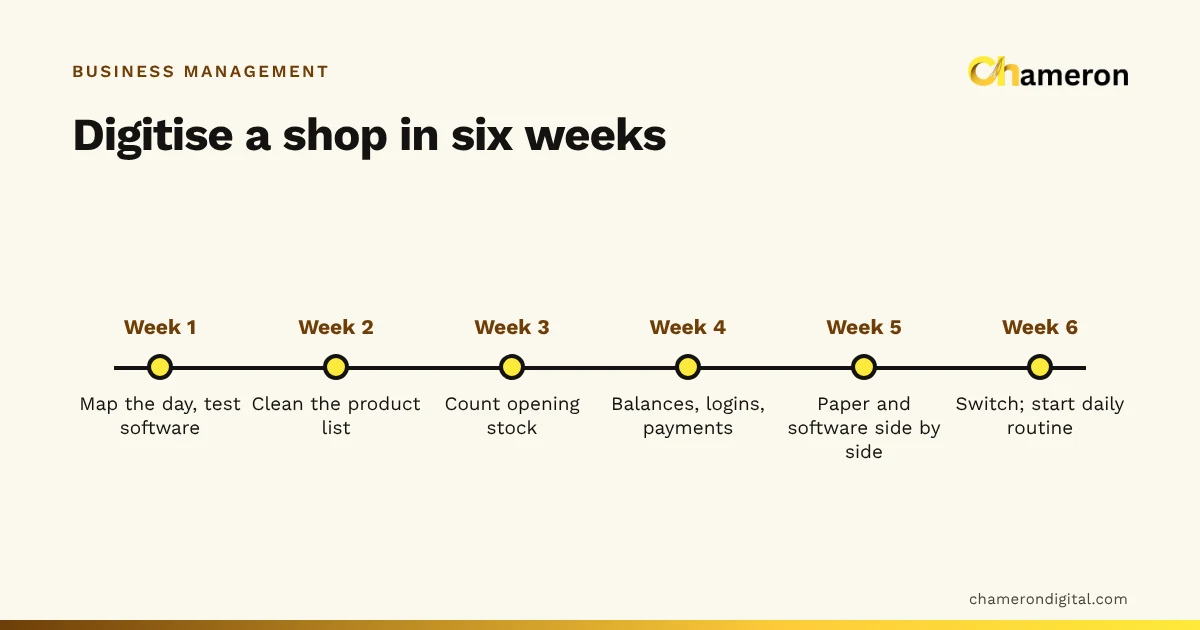
- Week 1: List every task your team repeats daily or weekly, with minutes per task. Run each through the four-question test.
- Week 2: Switch on the single best candidate, usually stock updating from sales or the end-of-day summary. Check its output every day.
- Week 3: Fix what the checks found. Write down the owner, the limit and the fallback.
- Week 4: Compare the hours actually saved with your estimate. If it worked, pick the next task; if not, find out why before adding more.
One well-checked automation beats five that nobody watches. For the bigger picture of moving from paper to software, see how to digitise small business operations.
Common mistakes
- Automating a messy process. If the manual process is unclear, the automated one will be unclear and faster. Tidy it first.
- Automating everything at once. When something breaks, nobody knows which change caused it.
- No owner. An automation that “everyone” watches is watched by nobody.
- Trusting silence. A backup or report that quietly stopped is the most common failure. Make sure failure is visible.
- Removing judgement. Reorder lists, reminders and discounts need occasional human sense, especially around festivals and with regular customers.
The bottom line
Automation is worth it where work is frequent, rule-based, error-prone and easy to check. Start with one entry updating every record it touches, add scheduled reports and backups, and let the system suggest reorders and reminders while a person approves them. Keep people in charge of money, prices and customer messages. If you are wondering what kind of system makes this possible, read what a business operating system is.
Questions people ask
Do I need expensive software to automate my business?
No. Much of the value comes from the basics in ordinary billing or business software: a sale that updates stock, an automatic daily report, scheduled backups and a reorder list. Start with what your current system can already do before buying more.
Can I automate with spreadsheets?
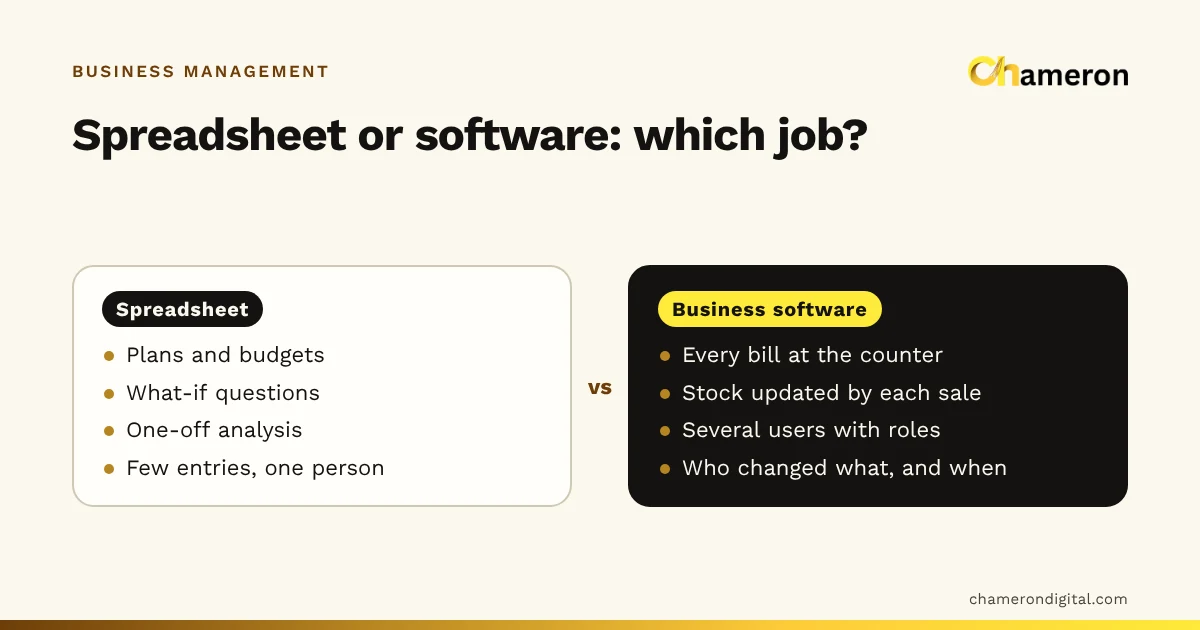
Partly. Formulas can total sales or flag low stock, but a spreadsheet does not update itself when a bill is made, so someone still types the data in. That re-typing is usually the work worth removing. See business management software vs spreadsheets.
Will automation replace my staff?
In a small business it mostly removes copying, counting and chasing, not jobs. The time usually moves to serving customers, checking stock and following up on exceptions, which are things people do better than software.
What should a small business automate first?
The most frequent task that follows clear rules and is easy to check. For most shops that is stock updating itself from sales, followed by an automatic end-of-day summary and scheduled backups.
How do I know an automation is still working?
Give it an owner who checks its output on a fixed day each week, keep a log of what it did, and set up one visible sign of failure, such as a daily report that should always arrive. Silence is the most common way automations fail.